


Introduction
ClickUp provides one of the most flexible and powerful task management systems available, but to truly unlock its capabilities, you need to structure your tasks intelligently. In this detailed guide, we're walking through the core principles of task creation and planning inside ClickUp. You’ll learn how to define high-quality tasks, assign responsibilities, break large items into subtasks, and improve cross-team coordination through ClickUp’s powerful task relationships.
Key Takeaways
- Understand the essential components of a ClickUp task: title, assignee, due date, priority, and time estimate.
- Add context with descriptions, custom fields, attachments, subtasks, and checklists.
- Use activity and relationship areas to track progress and connect related work.
- Break down complex projects with parent tasks, subtasks, and checklists.
- Know when to use subtasks versus checklists for better task management.
- Leverage custom fields and relationships to fit your workflow.
- Create tasks efficiently using lists, global options, or shortcuts.
- Link tasks to documents and external resources for full context.
The Anatomy of an Effective ClickUp Task
A well-structured task in ClickUp contains four essential components that work together to provide clarity and context.
Base Information
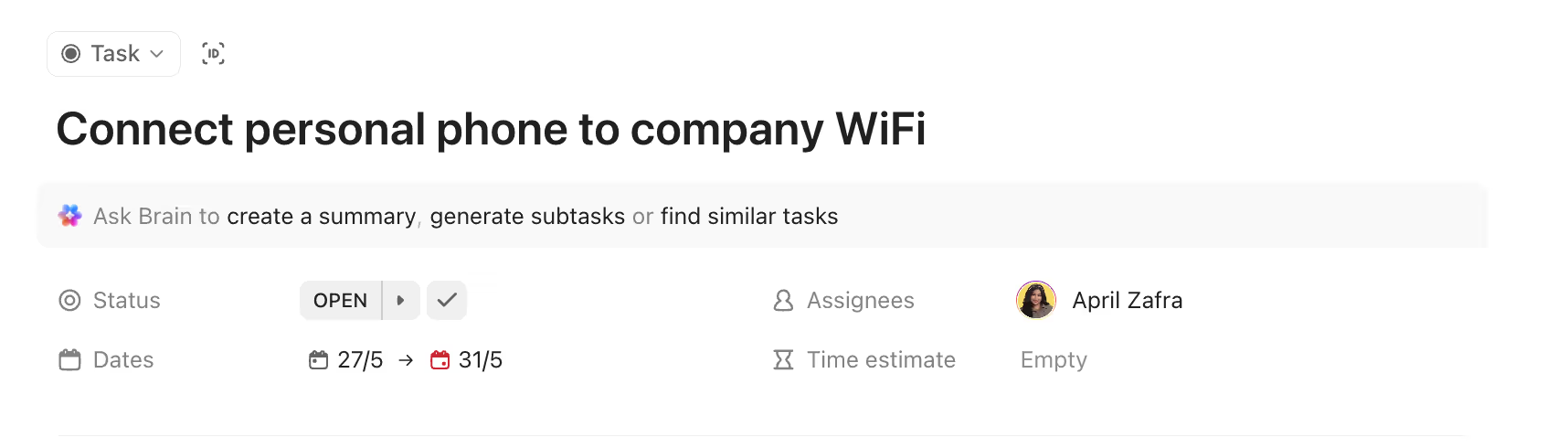
Base information of a ClickUp task
The base information provides the fundamental details needed for any task:
- Title/Description: A clear statement of what needs to be accomplished
- Status: The current stage of the task in your workflow
- Assignee: The person responsible for completing the task
- Due Date: When the task must be completed
- Time Estimate: How long the task is expected to take
- Priority: The importance or urgency of the task
Detailed Information
The detailed information section allows you to provide additional context that helps assignees understand the full scope of the task:
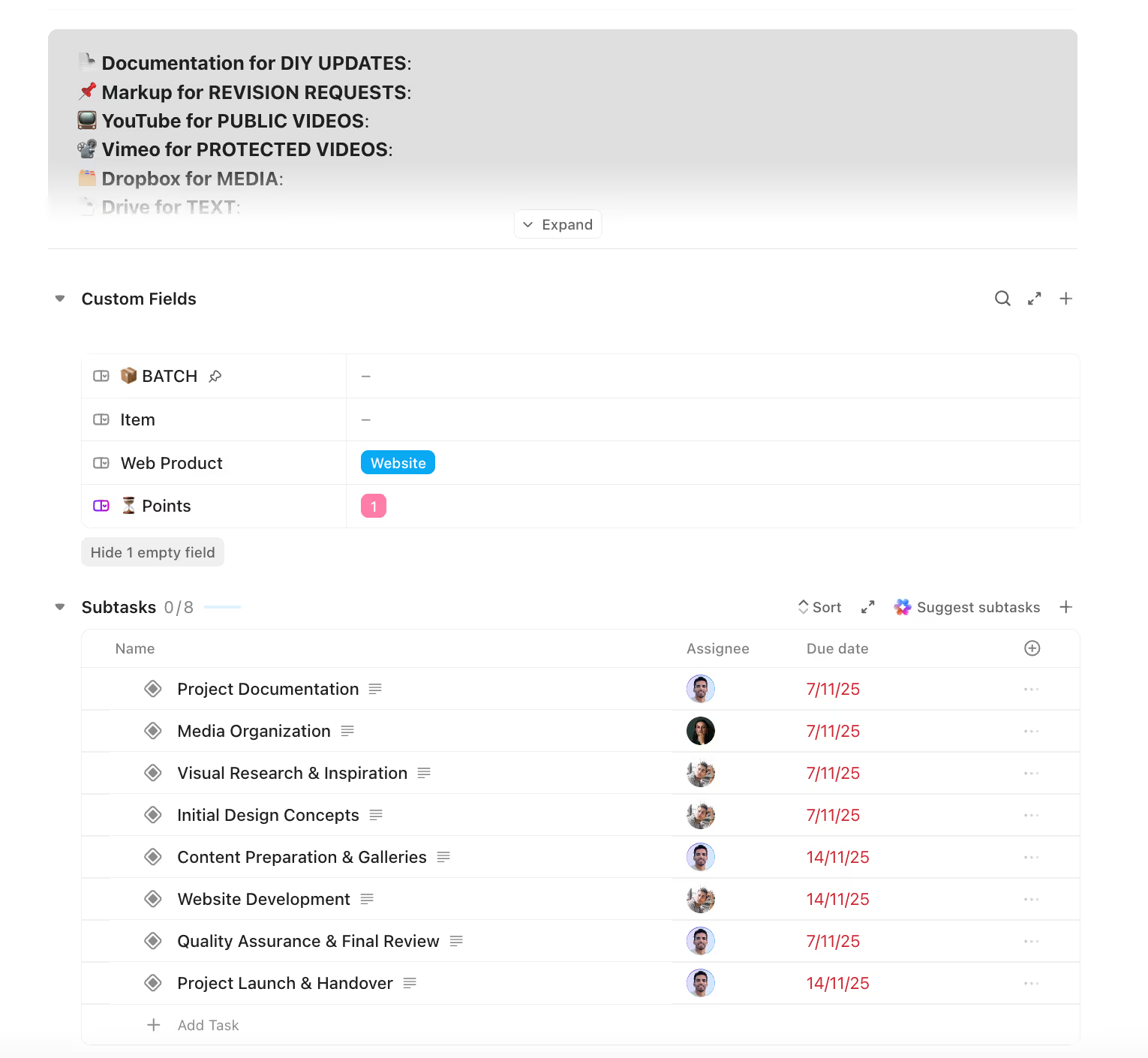
Detailed information of a ClickUp task
- Description: Extended information about requirements, objectives, or background
- Custom Fields: Specific data points relevant to your workflow
- Attachments: Files, images, or documents needed to complete the task
- Subtasks: Smaller components that break down complex tasks. Learn how to apply task field values here.
- Checklists: Simple action items that don't require the full structure of subtasks
Activity Area
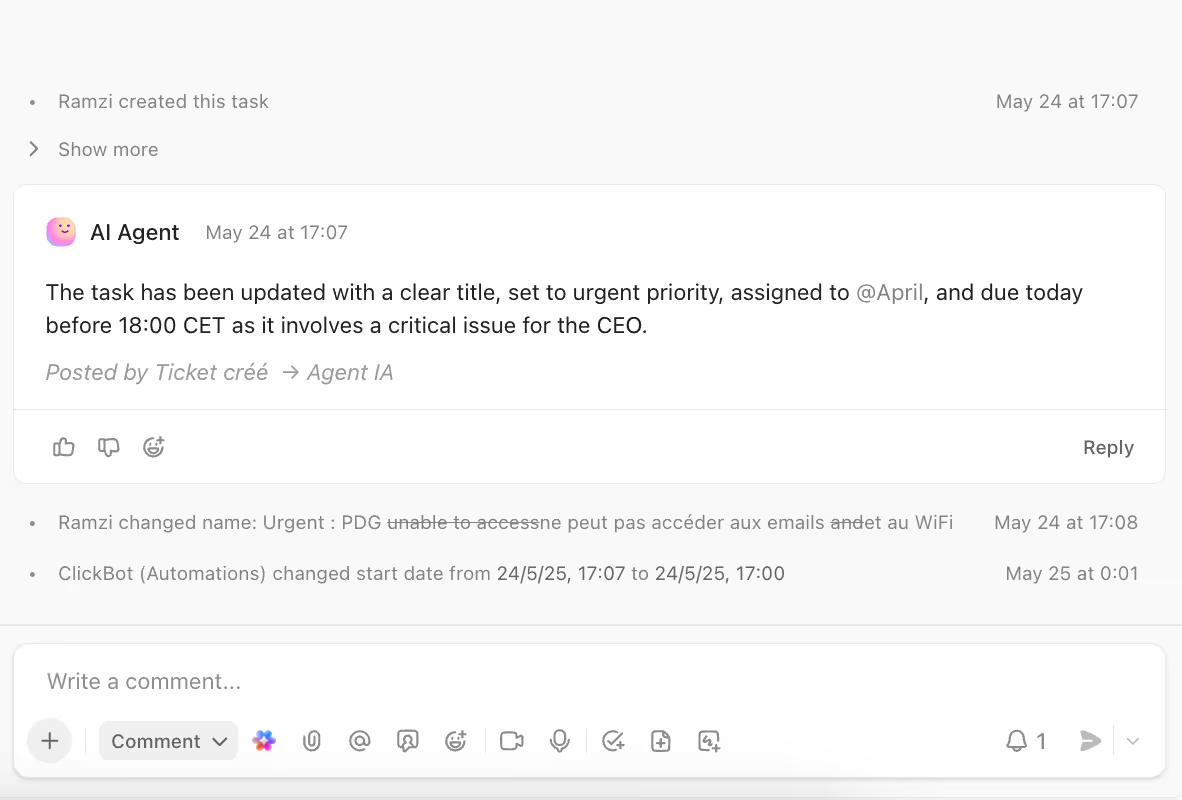
Activity area of a ClickUp task
The activity area serves as the historical record and communication hub for each task:
- Task History: Automatic tracking of all changes to the task
- Comments: Team discussions about the task
- Updates: Progress reports and status changes
- Mentions: Communications that tag specific team members
Relationship Area
The relationship area helps establish how tasks connect to other work:
- Dependencies: Tasks that must be completed before or after the current task
- Linked Tasks: Related work items without formal dependencies
- Document Links: Associated documentation or resources
- Web Links: External resources relevant to the task
3 Ways to Create Tasks in ClickUp
Method 1: Adding Tasks Directly From a List
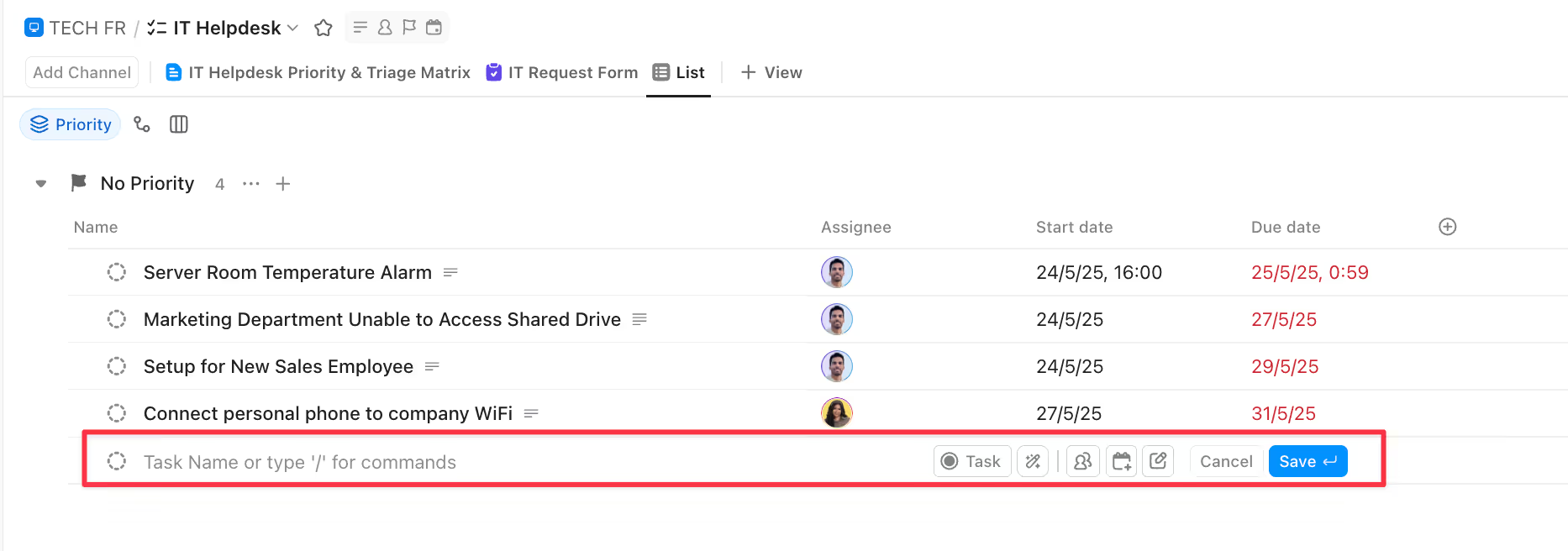
Adding tasks from a list
This approach works well when you're already in the list where you want to add the task:
- Navigate to the desired list
- Click the "Add Task" button at the bottom of the list
- Enter the task name
- Press Enter
Method 2: Using the Global Task Option
When you need to add tasks from anywhere in ClickUp:
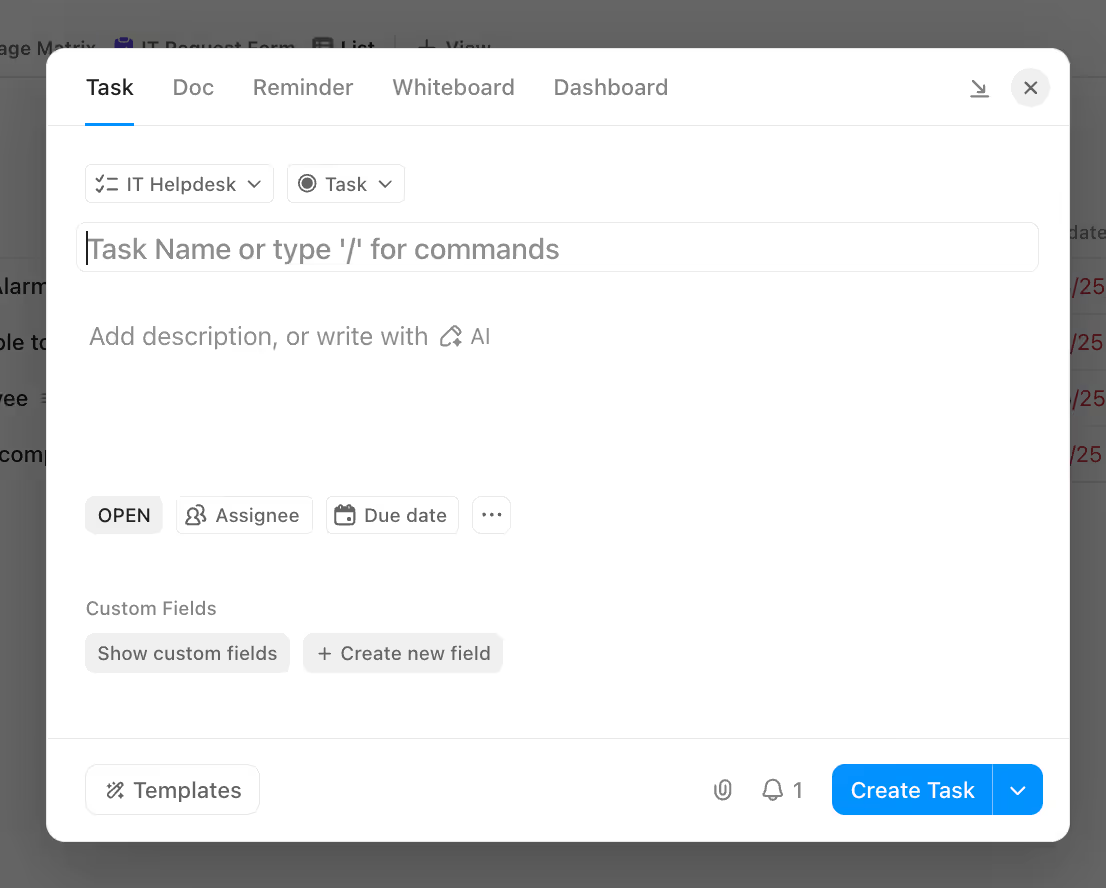
Adding tasks from the global task option
- Click the "+ Add Task" button in the top navigation bar, or
- Click the "New" button and select "Task" from the dropdown menu
- Enter task details and select the appropriate list location
Method 3: Using Keyboard Shortcut
For keyboard shortcut:
- Press "T" anywhere in ClickUp
- Enter the task name
- Choose which location to add the task
The Most Important Task Components
For a task to be truly functional in ClickUp and to take advantage of the platform's advanced features, it must include three important components:
1. Assignee
Adding an assignee:
- Creates clear ownership for each task
- Allows for personal task lists and workload management
- Enables notification systems to work properly
- Provides filtering options in views and dashboards
2. Due Date
Setting due dates:
- Establishes clear deadlines for completion
- Enables calendar and timeline views to display tasks properly
- Allows for time-based filtering and reporting
- Triggers reminders and notifications
- Can be expanded to include start dates for more precise scheduling
3. Time Estimate
Adding time estimates:
- Helps teams understand the expected effort involved
- Enables accurate workload balancing
- Provides data for resource planning and capacity analysis
- Improves future estimation accuracy through historical comparison
- Allows managers to identify when tasks might require more support
Breaking Down Complex Work into Manageable Components
Parent Tasks and Subtasks
The parent-task/subtask relationship creates a hierarchical structure that:
- Groups related work under a common parent
- Assigns different team members to specific components
- Tracks completion percentage automatically as subtasks are completed
- Maintains the connection between high-level deliverables and detailed work
- Supports different levels of management oversight
Best practices for subtask implementation:
- Assign the manager or project owner to the parent task
- Assign individual contributors to relevant subtasks
- Set due dates on both parent tasks and subtasks
- Ensure time estimates reflect the actual work involved
- Use consistent naming conventions for clear communication
Subtasks vs. Checklists
When a task involves multiple steps, you need to break it down. ClickUp provides two primary tools for this: subtasks and checklists.
When to Use Subtasks
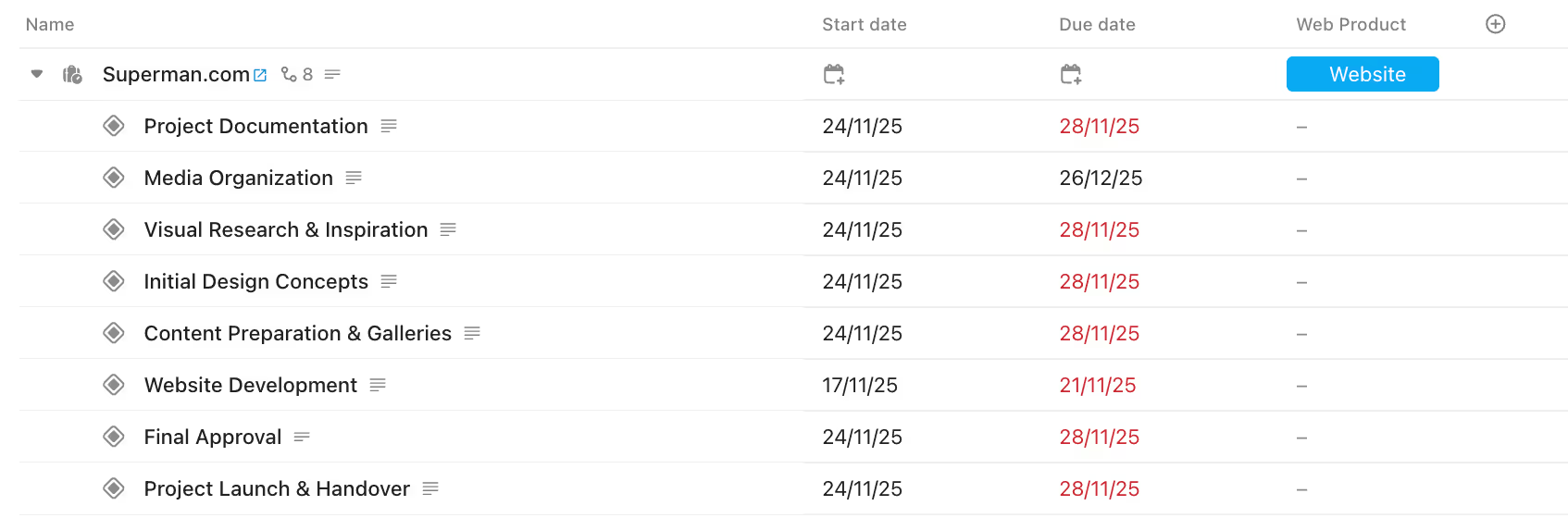
ClickUp subtasks
A subtask behaves almost exactly like a parent task. It can have its own assignee, due dates, priority, time estimate, description, and even its own subtasks.
Use a subtask if the action item:
- Needs to be assigned to a different person than the parent task.
- Requires its own specific deadline.
- Needs a time estimate to be tracked against team capacity.
- Is complex enough to need its own description or attachments.
For example, in a "Create Promotional Video" task, "Write Script," "Film Footage," and "Edit Final Video" are all perfect candidates for subtasks.
When to Use Checklists
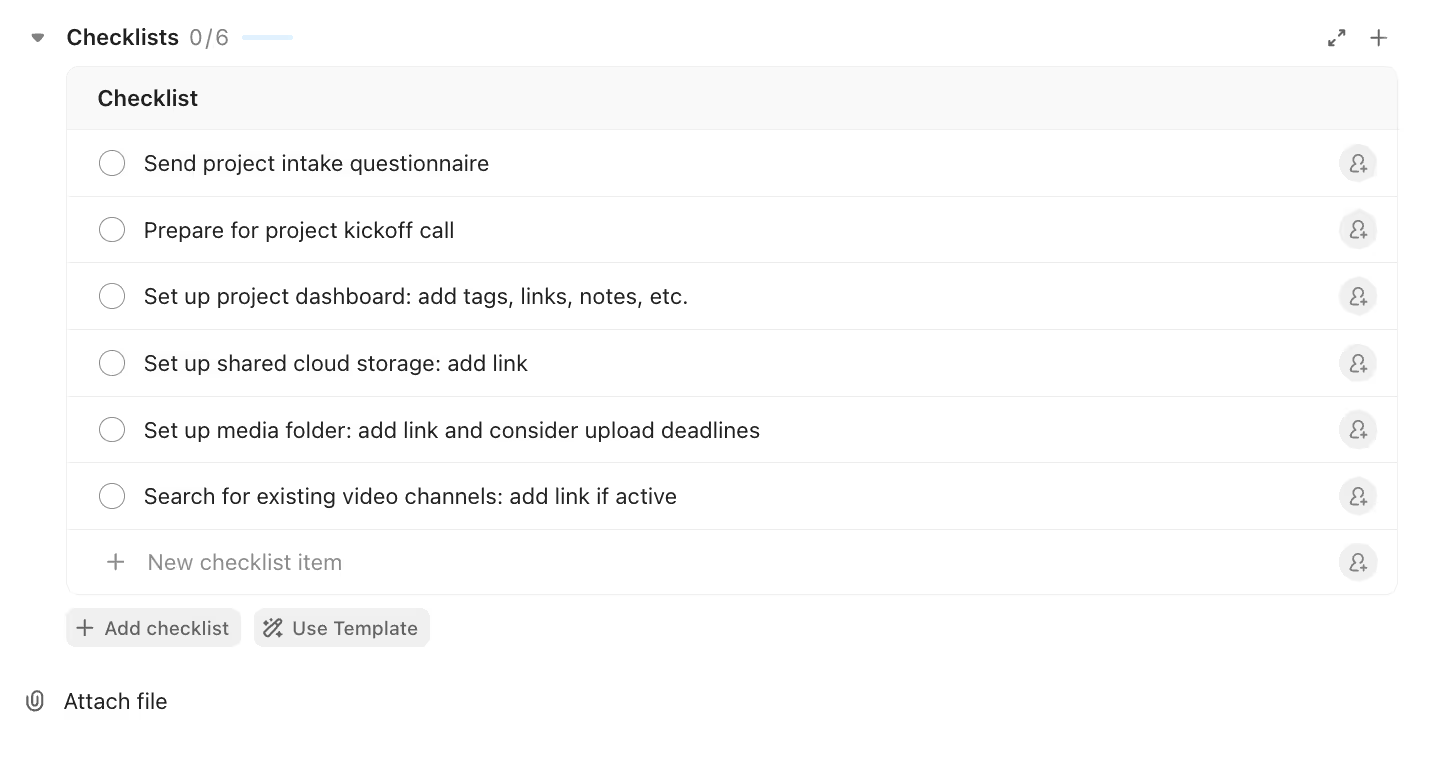
ClickUp checklist
A checklist, or an "action item" in ClickUp, is much simpler. It's a binary to-do item that can either be done or not done. It doesn't have its own due date, time estimate, or priority.
Use a checklist if the action item:
- Is a simple, procedural step.
- Doesn't require independent tracking.
- Is part of a quality control or review process.
For instance, within the "Edit Final Video" subtask, you might have a checklist: "Check audio levels," "Apply color correction," "Add title cards."
Custom Fields
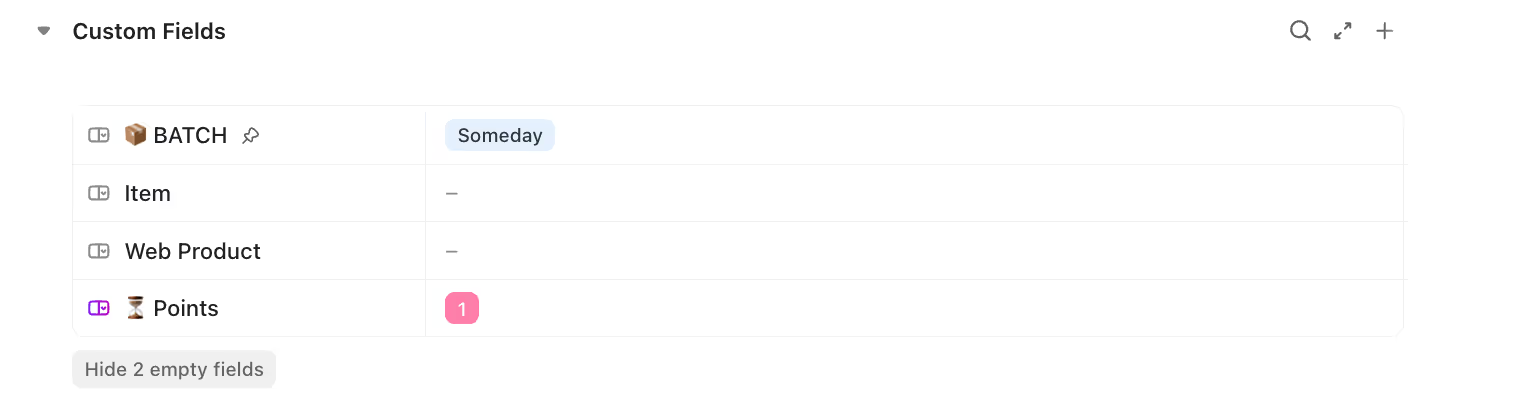
ClickUp custom fields
Custom fields allow you to add specialized information to tasks beyond the standard ClickUp fields:
- Create fields for client information, project codes, billing details, or any other relevant data
- Filter and sort tasks based on custom field values
- Generate reports using custom field data
- Standardize information collection across tasks
- Support different field types including text, numbers, dropdowns, and formulas
Advanced Task Relationship Management
Task Dependencies

ClickUp custom fields
Task dependencies formalize the relationship between tasks that must follow a specific order:
- "Waiting on" dependencies indicate tasks that cannot start until others are complete
- "Blocking" relationships show which tasks are preventing others from proceeding
Custom Relationships
Custom relationships allow for more nuanced connections between tasks:
- Create relationship types specific to your workflows (translations, versions, related products)
- Link tasks across different lists, folders, or spaces
- Establish bidirectional connections between related work
- Build a network of connected tasks that reflect complex real-world relationships
- Improve discoverability of related content
Example implementation:
A content team might create "translated version" relationships to connect original content tasks with their translations in different languages, maintaining clear association without creating dependencies.
Document and Web Links
Not all related items exist as tasks within ClickUp. External linking capabilities allow you to:
- Connect tasks to supporting documentation
- Link to external tools or resources
- Provide reference materials directly within the task context
- Create connections to client-facing deliverables
- Maintain association with external assets or resources
Conclusion
Effective task management in ClickUp combines technical knowledge of the platform's capabilities with thoughtful application of project management principles. By ensuring that tasks contain essential information (assignees, due dates, and time estimates), teams can dramatically improve their productivity and project visibility. Adding detail and structure where needed while maintaining the simplicity and clarity that makes ClickUp valuable as a project management tool.