


Introduction
In the modern workplace, smooth team communication and efficient project management are crucial for success. ClickUp and Slack are two powerful tools that have changed the way teams get work done.
By integrating ClickUp with Slack, you can set a whole new level of productivity and simplify your workflows like never before. In this article, we talk about all that you need to know about ClickUp Slack integration.
Key Takeaways:
Combine project management in ClickUp with team communication in Slack
Get real-time notifications, create tasks, and collaborate seamlessly across platforms
Automate workflows, reduce manual work, and improve team alignment
Step-by-step guide to set up the ClickUp Slack integration
How do you integrate ClickUp with Slack?
To integrate ClickUp and Slack, enable the Slack integration in your ClickUp workspace settings, connect your ClickUp and Slack workspaces, and grant necessary permissions. This allows you to create tasks, get notifications, and interact with ClickUp tasks directly from Slack.
Overview of ClickUp and Slack
What is ClickUp?
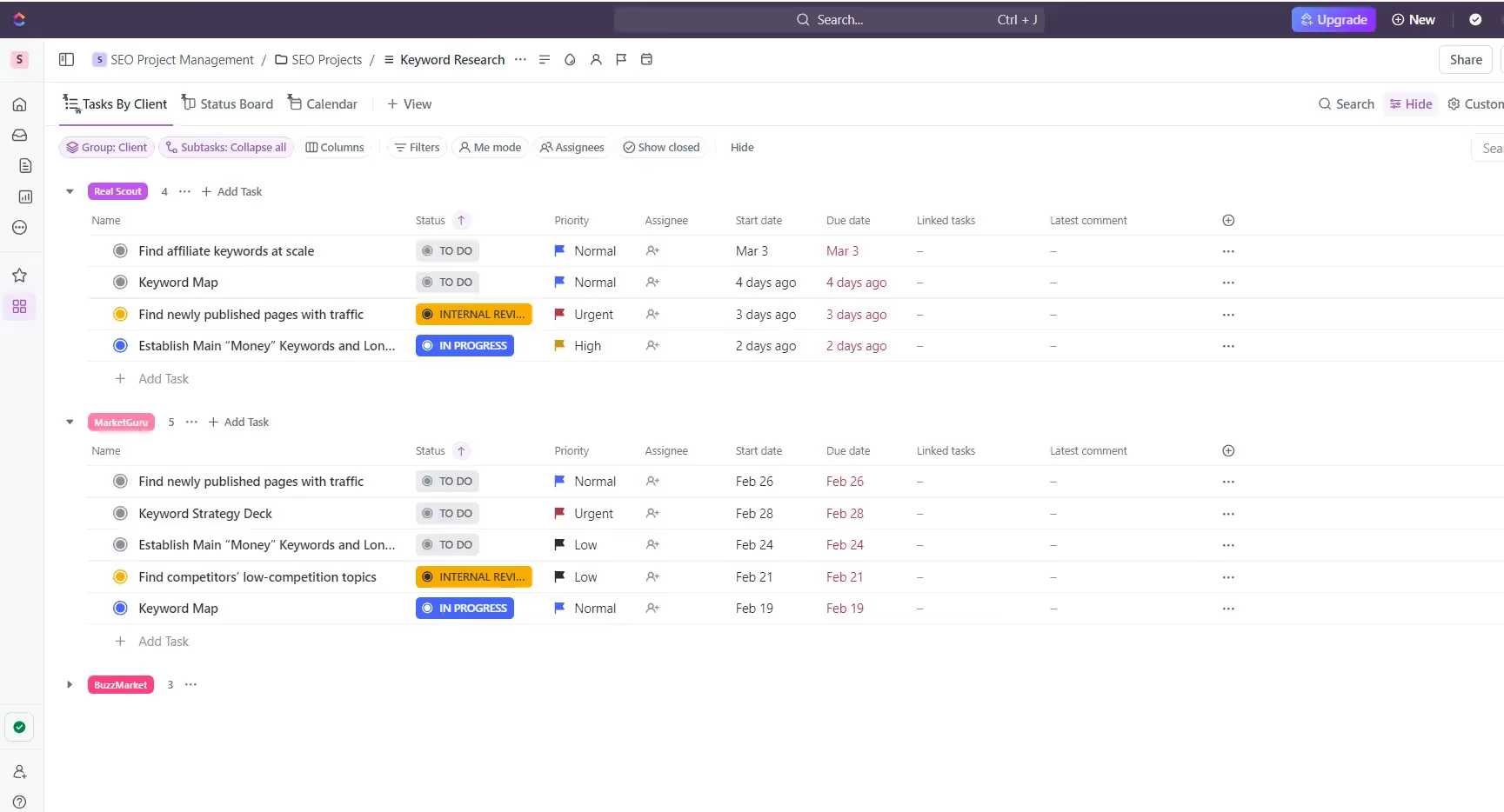
ClickUp is an all-in-one productivity platform that allows you to manage projects, tasks, and teams in one centralized workspace. It combines features like task management, document collaboration, reminders, calendars, and more into a single app.
With ClickUp, you can easily create tasks, assign them to team members, set due dates, add comments, and track progress.
What is Slack?
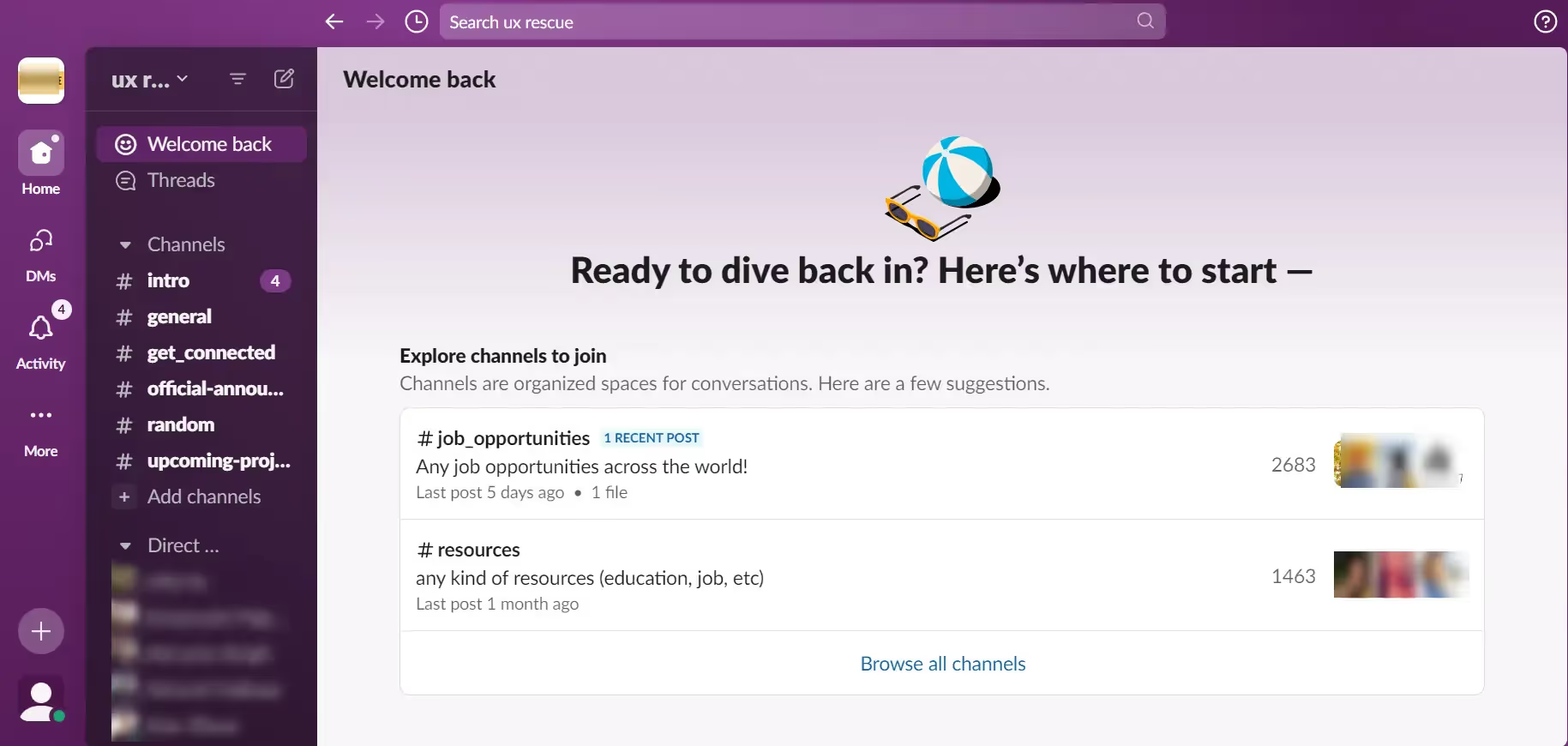
Slack is a leading team communication platform that brings all your conversations, files, and apps together in one place. It allows you to create different channels for different topics, projects, or teams, making it easy to keep communication organized and accessible.
With Slack, you can send direct messages, share files, integrate with other apps, and even make voice or video calls.
Key Features of the ClickUp and Slack Integration
Integrating Slack and ClickUp allows teams to simplify workflows. Key features include:
Create and manage ClickUp tasks in Slack
Get real-time notifications for task updates
Unfurl ClickUp tasks in Slack
Map ClickUp task statuses to Slack channels
Use automation workflows to reduce manual work
Add subtasks and checklists from Slack
Why Integrate ClickUp with Slack?
There are many benefits of integrating these two platforms that allow your team's efficiency to reach the next level:
Centralized Communication: Access important task details, attachments, and discussions directly within Slack, reducing context switching and saving time.
Real-Time Notifications: Receive notifications in Slack when new tasks in ClickUp are created, assigned, or updated.
Simplified Task Management: Create a new task, assign it to team members, and add comments directly from Slack, without leaving the platform.
Improved Collaboration: Discuss tasks, share files, and exchange information within Slack channels associated with specific projects or tasks.
Automated Workflows: Automate various processes, such as automatically creating tasks in ClickUp based on Slack messages, saving time.
Step-by-Step Guide to Slack ClickUp Integration
Integrating ClickUp and Slack is quite straightforward - just follow these simple steps to connect the two:
What You Need
✅ Admin access to your ClickUp workspace
✅ A Slack workspace to connect
Step 1: Accessing ClickUp Workspace Settings
The first step is to access the workspace settings in your ClickUp account:
Log in to your ClickUp account and open the desired workspace.
Click on the workspace name in the top-left corner of the screen.
From the dropdown menu, select "Workspace Settings."
Step 2: Enable Slack Integration in ClickUp
Once you're in the workspace settings, you can enable the Slack integration:
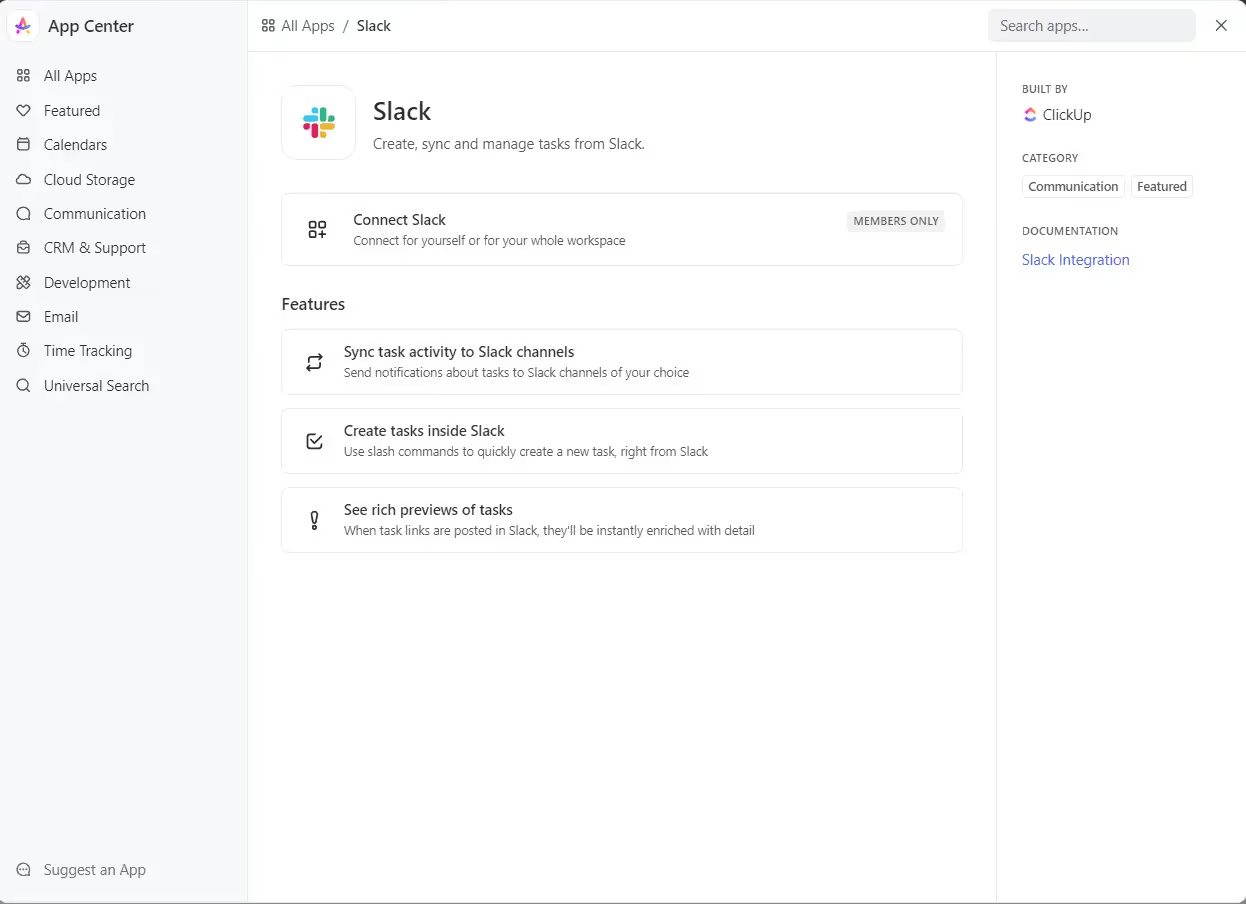
In the left-hand menu, click on the "App Centre" tab.
Scroll down and locate the Slack integration.
Click on the "Enable" button next to the Slack integration.
Step 3: Connect ClickUp to Slack
After enabling the integration, you'll need to connect your ClickUp workspace with your Slack workspace:
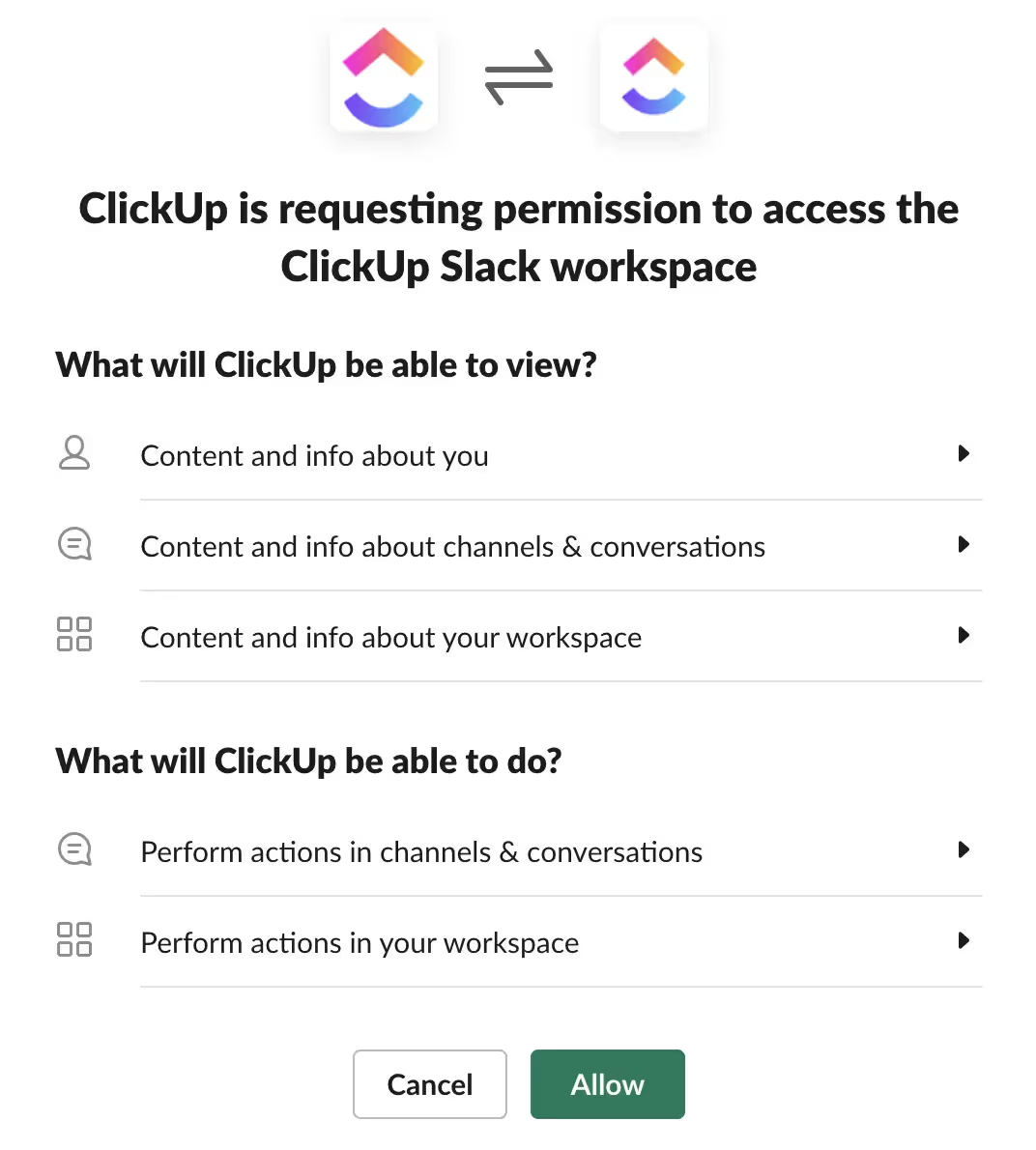
Follow the prompts to sign in to your Slack account and grant the necessary permissions for ClickUp to access your Slack workspace.
Select the specific Slack workspace you want to integrate with ClickUp.
Click "Allow" to authorize the integration.
That's it! You've successfully integrated ClickUp with Slack.
Connect ClickUp and Slack with Zapier
While ClickUp and Slack have a direct integration, you can also connect them through Zapier - a powerful automation tool. Zapier allows you to create automated workflows called "Zaps" between thousands of apps, including ClickUp and Slack.
With Zapier, you can set up triggers (events that start the workflow) and actions (events the workflow performs) between ClickUp and Slack. Some examples include:
Trigger: New message in a Slack channel Action: Create a new task in ClickUp project
Trigger: New task created in ClickUp Action: Send notification to a Slack channel
Trigger: ClickUp task status changes Action: Update message thread in Slack
This level of automation can simplify your processes by reducing manual work.

Setting up these Zaps is simple - no coding required. Just choose the apps, triggers, actions and authorize the connections. Zapier has hundreds of pre-made templates, or you can create custom workflows.
By connecting ClickUp and Slack through Zapier, you unlock advanced capabilities like:
Automatically create ClickUp tasks from Slack messages, emails, forms, and more
Get notified in Slack for ClickUp events beyond just tasks (updates to docs, reminders, etc.)
Sync data between the two apps in custom ways
Connect other apps like CRMs, databases, calendars to create powerful workflows
Using Zapier allows you to take the ClickUp Slack integration to the next level.
Use ClickUp in Slack with Slack Unfurl
The ClickUp Slack integration lets you view and interact with your ClickUp tasks without leaving Slack conversations. It's called Slack Unfurl.
Whenever a ClickUp task link is shared in a Slack channel, the integration automatically unfurls (previews) that task with rich details like:
Task title, description, and status
Due date and assignees
Custom fields (priority, tags, etc.)
Comments and activity

Unfurled tasks aren't just previews - you can interact with them directly in Slack:
Add comments or @mention teammates
Update the task status
View attachments
Open the full task in ClickUp
Unfurl keeps you aligned on ClickUp tasks during Slack conversations.
To enable unfurling, just go to your ClickUp Integrations settings and turn on "Unfurl ClickUp links".
Get Notified in Slack About ClickUp Updates
Don't miss important ClickUp activity - enable Slack notifications!
Here's how:
In Slack, go to Preferences > Notifications
Find "ClickUp" in the Apps section
Turn on notifications for new tasks, comments, due dates, etc.
Customize notification sounds, mobile alerts, and more
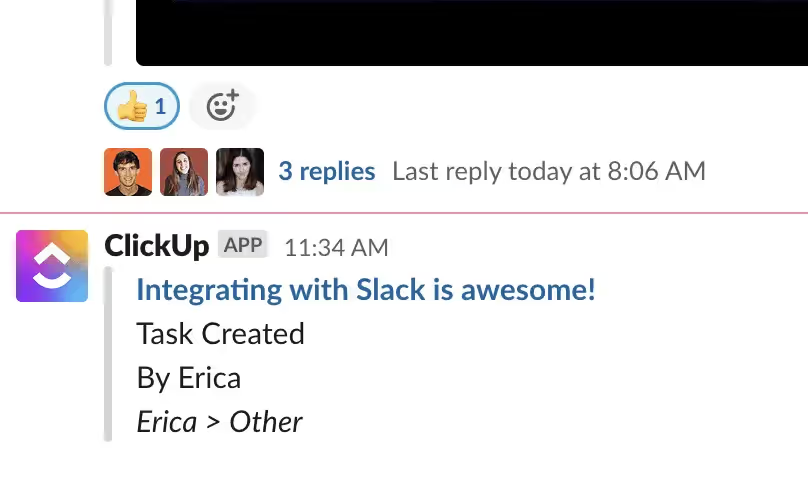
With Slack notifications on, you'll get real-time alerts whenever:
New ClickUp tasks are assigned to you
Someone comments on your tasks
Task due dates are approaching
Statuses change on your tasks
And more!
The ClickUp Slack integration allows you to view, manage, and get notified about your ClickUp tasks without constantly switching between apps. Unfurl detailed task previews and get timely notifications - all within Slack for maximized efficiency.
Create ClickUp Tasks in Slack
One standout feature is creating new ClickUp tasks directly from Slack messages:
Hover over any Slack message
Click "Create Task"
Enter task name, description, assignee, due date
The task is instantly created in your ClickUp account
You get a notification in Slack for the new task
It's that simple! Turn messages into tasks in ClickUp without leaving Slack.
Use Slack Actions to Manage ClickUp Tasks
The integration allows you to perform various ClickUp actions directly from Slack using Slack actions. Here's how you can use them:
Add Comments to Existing Tasks: Hover over a message, click "Add Comment," and select the relevant ClickUp task to add your comment without leaving Slack.

Update Task Status: Change the status of a ClickUp task to "In Progress," "Completed," etc., right from Slack by hovering over messages.
.gif)
Creating, commenting, and updating - all these ClickUp actions can be done from your familiar Slack interface using simple hover actions over messages.
Disable the Slack Integration
If you ever need to disconnect ClickUp from Slack, disabling the integration is a straightforward process:
Log into your ClickUp account and go to the Workspace Settings
Click on the "Integrations" tab to view all active integrations
Find the "Slack" integration and click the "Disable" button
Confirm that you want to disable the Slack integration for your ClickUp workspace
That's it! The integration will be disabled, and ClickUp will no longer send notifications or create tasks in Slack. You can always re-enable the integration later if needed.
Connect ClickUp with Other Slack Apps
Go beyond the direct ClickUp and Slack integration.
Connect ClickUp with other apps on the Slack App Directory
Integration enables custom workflows tailored to your needs
Automate processes like creating ClickUp tasks from CRM leads
By using these advanced tips, you can truly maximize your team's productivity by taking action without ever leaving Slack.
Common Issues and Troubleshooting Tips
While the ClickUp Slack integration is designed for smooth connectivity, you may occasionally encounter some issues. Here are some common challenges and troubleshooting tips:
1. No Notifications in Slack
Make sure the Slack integration is enabled in your ClickUp workspace settings
Double-check that you've configured notification settings correctly
Make sure you're a member of the Slack channel where notifications should appear
2. Can't Create Tasks from Slack
Verify that you have the necessary permissions in both Slack and ClickUp
Check if the Slack action menu appears when hovering over messages
Try re-authenticating the Slack integration in ClickUp
3. Task Details Not Updating
Allow some time for changes to sync between Slack and ClickUp
Make sure your internet connection is stable
Try refreshing both Slack and ClickUp applications
4. General Connectivity Issues
Check the Slack and ClickUp status pages for any reported outages
Clear your browser cache and cookies
Contact the ClickUp help center or Slack support for further assistance
Conclusion
By integrating Slack with ClickUp, teams can simplify their workflows, improve collaboration, and increase productivity by combining the power of both platforms. With real-time notifications, centralized information, and the ability to manage and create new tasks from within Slack, teams can stay on top of getting work done efficiently while maintaining open lines of communication.
ClickUp's integration with Slack is just one aspect of optimizing your team's productivity. By combining the right tools and processes, your team can achieve remarkable results and stay ahead in a competitive business landscape.
UpSys Support for ClickUp
At UpSys, we specialize in helping teams optimize their project management processes using ClickUp. Whether you are considering adopting ClickUp or looking to maximize its potential for your team, our expertise in setup, consulting, coaching, and training will ensure you get the most out of this versatile tool.
Contact us to learn how we can tailor ClickUp to fit your team's unique needs and propel your project management to the next level!
Ready to Transform Your ClickUp Workspace?
Get expert guidance to unlock your team's potential with ClickUp.
Book a free consultation and discover how we can simplify your workflows, boost productivity, and eliminate chaos from your business operations.