

How to Manage Your Social Media with ClickUp
Introduction: Improve Your Social Media Strategy with ClickUp
For entrepreneurs or social media managers, a strong social media strategy matters. ClickUp is a tool that helps you plan, assign, and track your social media tasks all in one place. This guide will show you how to set up and manage your social media efforts using ClickUp to make sure you reach and engage your audience effectively.
How can ClickUp improve your social media strategy?
ClickUp allows you to create, assign, and track social media tasks efficiently in one platform. It offers automation tools that save time and customizable views that help keep your content strategy organized and effective. With ClickUp, you can make sure that every post matches your brand and meets your audience engagement goals.
Clarify Your Social Media Team's Workflow with ClickUp
The social media space is in constant flux, and what worked yesterday may not work today. Therefore, you have to have a reliable social media workflow to keep your content strategy organized and effective. There isn't a one-size-fits-all solution for every business, but there are best practices that can help you create a social media workflow that suits your needs.
A content creation workflow is a set of tasks or steps that should be completed before your content is ready to publish. It also defines the roles and responsibilities of the people involved, the documents and assets to be used at every stage, and the timelines for each of these tasks. Having a well-defined content workflow ensures:
Your process is broken down into smaller steps to make it more manageable and trackable
Roles, responsibilities, and deliverables are clear to all team members
A consistent content publishing schedule can be established
Content bottlenecks are eliminated
Every piece of content goes through a standard quality control process
Resources and time are optimally utilized
You have visibility into your content projects and their progress
Content is distributed and promoted well
Also, it's important to have clear posting guidelines, especially when working with a team. By having posting guidelines, you can make sure that all of your content is high-quality, meets company policy, and sounds like the brand. ClickUp Docs can be a great way to store these guidelines.
Task-Based Workflows vs. Status-Based Workflows in ClickUp
It’s also important to know whether your team would work better with a task-based workflow or a status-based workflow. In task-based workflows, the workflow stages are the task that needs to be carried out at that stage. Here, each step is defined much more elaborately, and anyone working on the project knows what is expected of them. Status-based workflows are easier to track, but to get the most out of this content workflow, your team needs a clear understanding of your content creation process. In our case, we’ll use a status-based workflow as it will help us use automations better.
Create a List in ClickUp to Monitor Your Social Networks
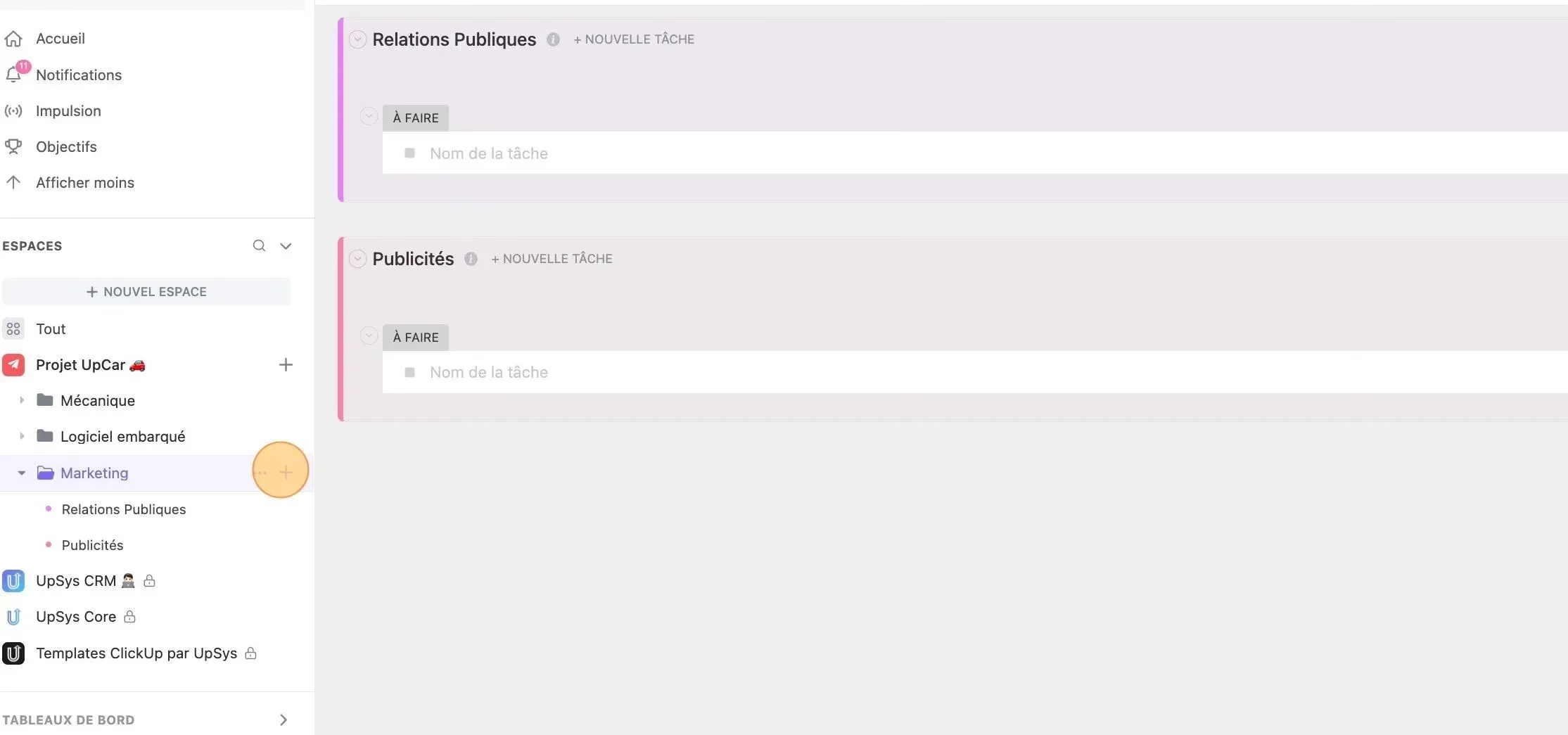
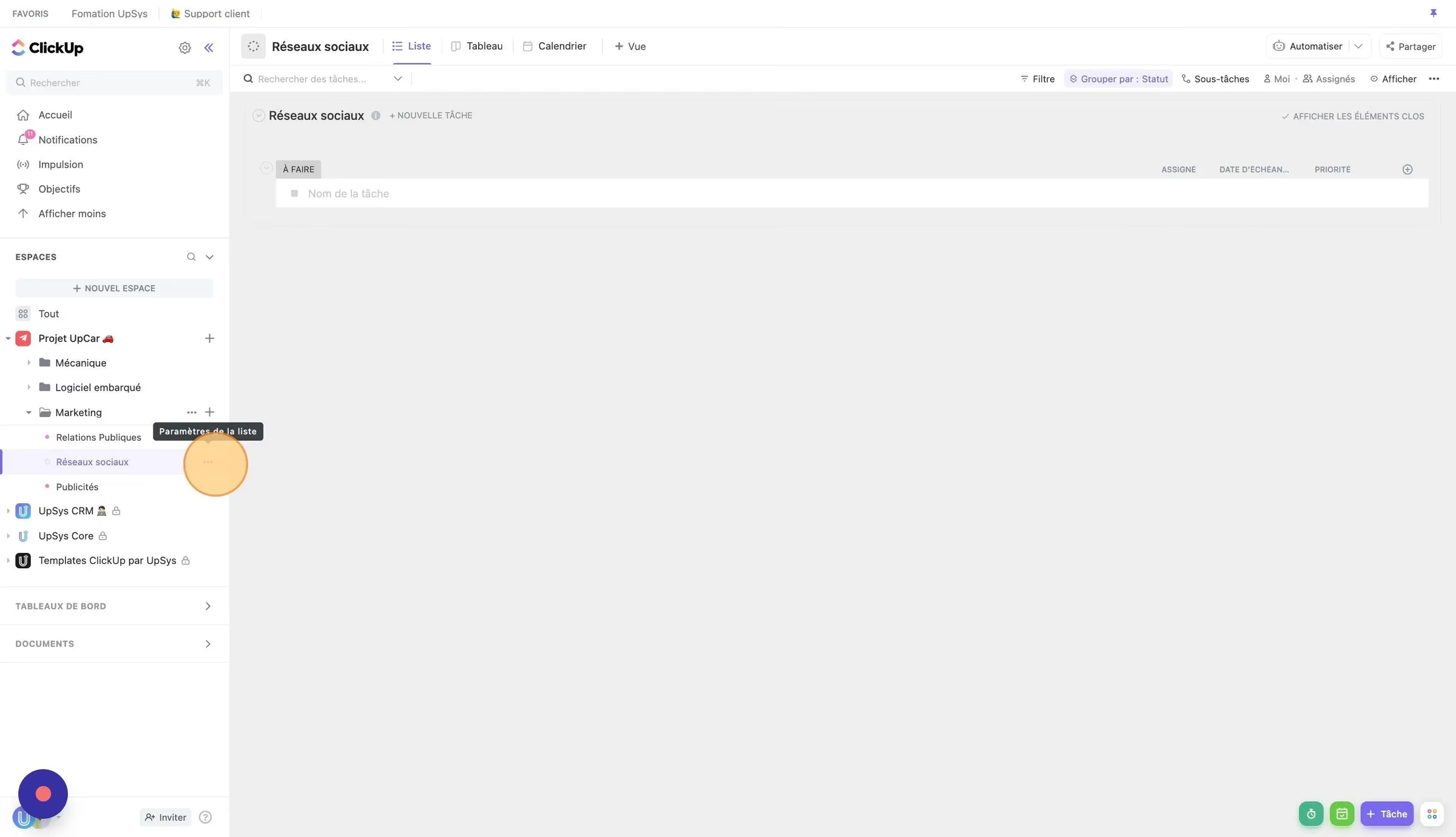
The first step in tracking any project on ClickUp is to create a list. This is a straightforward process:
Open ClickUp and move through to the folder or space where you want to add the list.
Click on the "+" icon in the left-hand menu and select "Create List".
Give your list a name (for example, "social media").
Creating a list is a fundamental step in organizing your social media tasks. It allows you to categorize tasks based on different social media platforms like Facebook, Instagram, Twitter, etc. This way, you can easily monitor the progress of each task and make sure that all your social media posts are on schedule.
Use the Power of ClickApp Automations
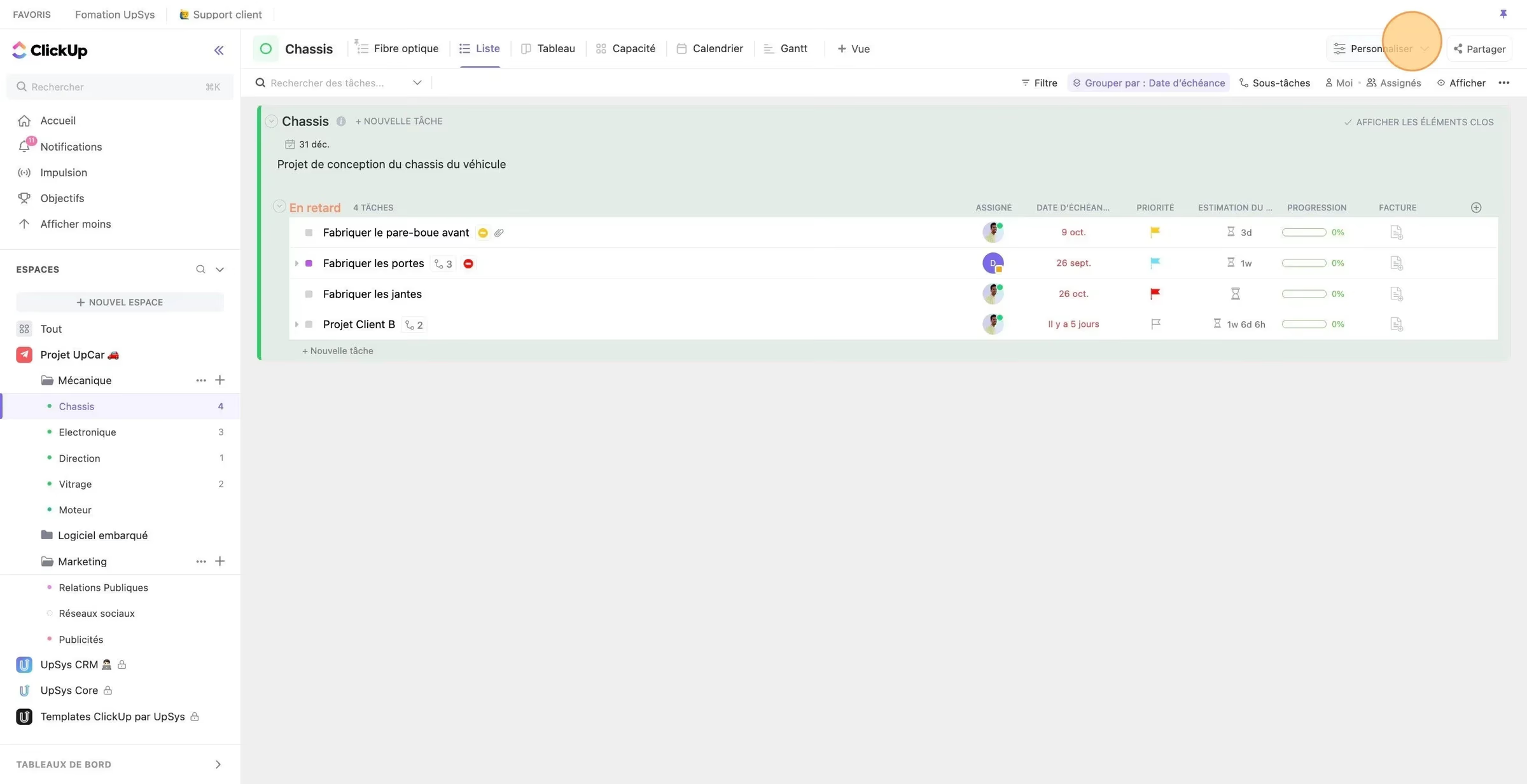
The first step in using ClickUp's solid automation features for social media management is to let the ClickApp Automation. As an administrator of your ClickUp space, you'll find the ClickApps option in the bottom corner of your account. Clicking on your ClickApps will direct you to a menu of all available applications. Here, you need to make sure that the automations are enabled.
ClickApp Automation is a powerful tool that automates routine tasks and streamlines your workflow. It allows you to set up custom automation rules that trigger specific actions based on predefined conditions. For instance, you can set up an automation to automatically change the status of a task to "In Progress" when it's assigned to someone.
To let ClickApp Automation:
Move through to the ClickApps section in your ClickUp settings.
Scroll down to find the Automation ClickApp.
Click on the toggle button to let it.
Once enabled, you can start creating custom automations for your tasks. Effective use of automation can significantly reduce manual work, increase speed, and make sure consistency in your social media management process. So, don't hesitate to explore and experiment with different automation rules to find what works best for your team.
Put your workflow into ClickUp’s context
Have you activated your ClickApp Automation? Excellent! Automations are fantastic for eliminating repetitive manual actions from a process. However, implementing effective automations requires that you have a well-structured process. If the exchanges between your team members are not fluid, your automations will be ineffective.
To be able to use automation, it is therefore essential to have already mapped your process. Here are the 3 essential points for a successful automation:
Define the stakeholders, responsible for the completion of each step and assigned gifts: social media manager, editor, designer, community manager...
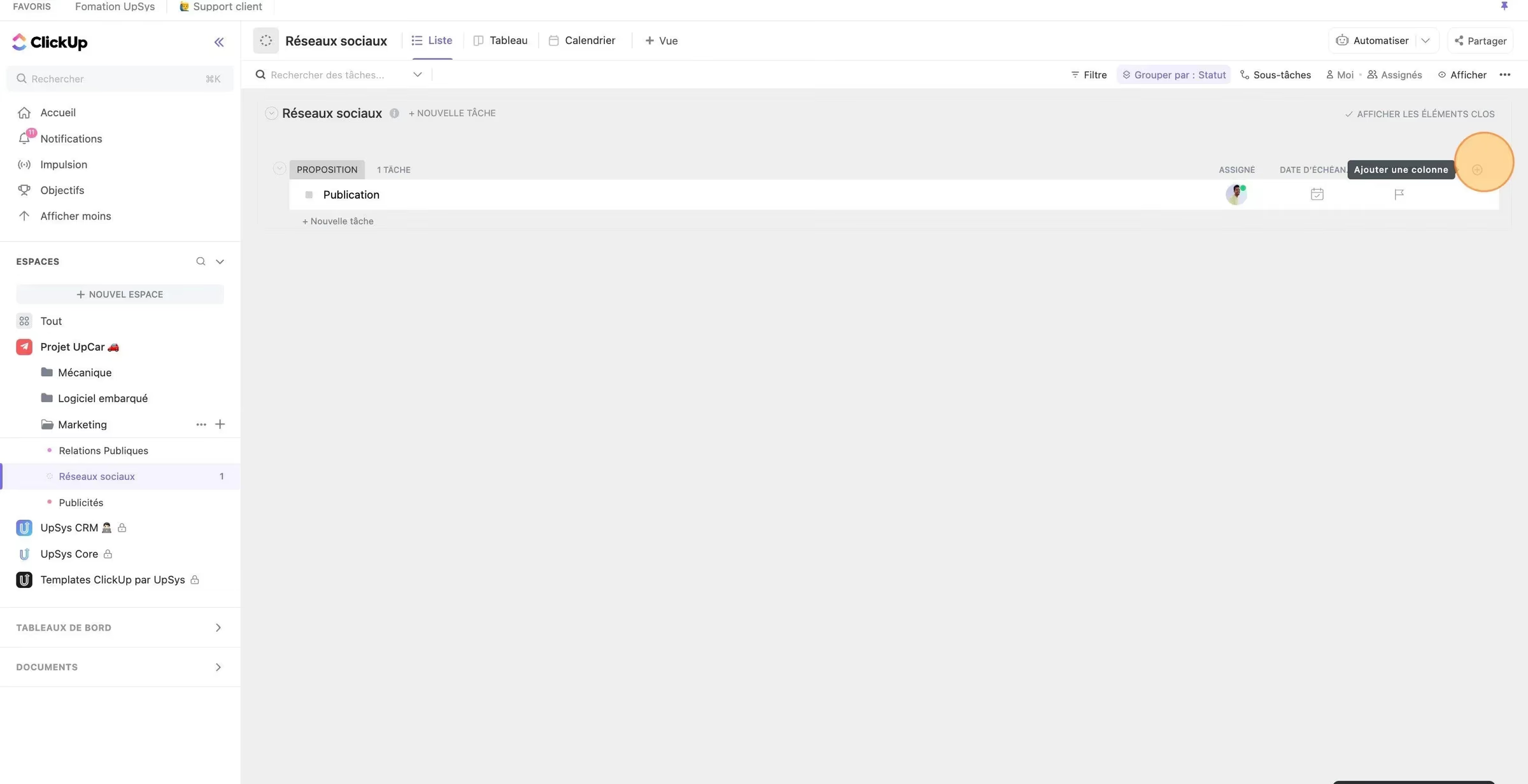
Identify the steps of the content publication process on social networks and convert them into ClickUp statuses, with an assignee responsible for each step. For example, you can imagine the following statuses:
Proposal - the idea of publication is submitted by a collaborator to the social media manager for validation
Design - the publication proposal is validated by the manager, and the publication is designed by the designer
Validation - the publication is to be validated by the social media manager for programming
Planning - the publication is to be validated by the community manager
Planned - the date of publication and the destination social networks have been defined by the community manager, and the publication will be automatically published
Estimate the duration of each step and plan the due dates accordingly.
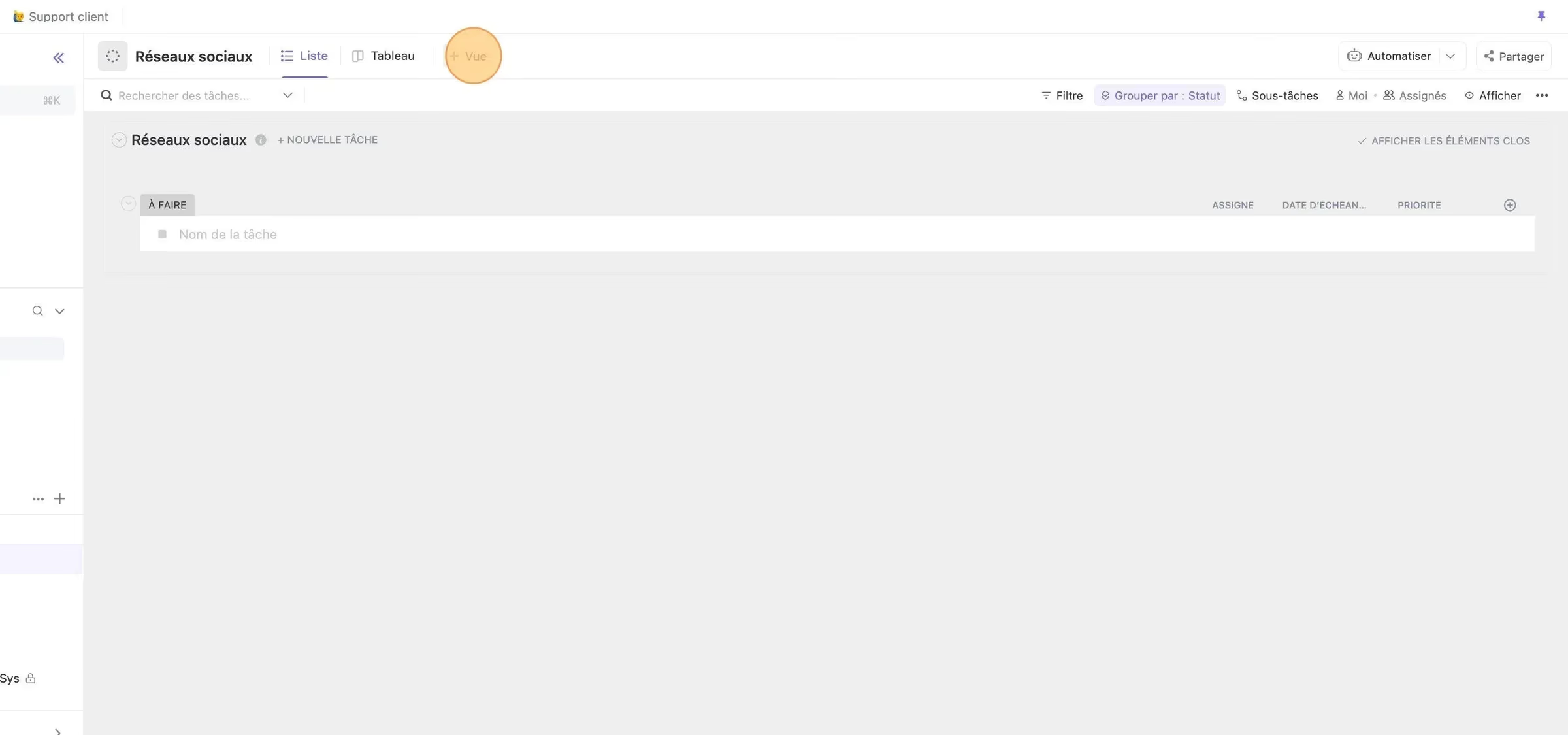
Create the Right Views in ClickUp: Table and Calendar Views for Social Media
As you saw in the article on the 5 best practices in ClickUp, it is essential to know which representation of your tasks is adapted to your project. In the context of managing your social networks, 2 views are interesting: the table view (Kanban) and the calendar view. The table view, also known as the Kanban view, is a visual representation of your workflow processes with simple statuses across columns. It's an agile methodology that focuses on team communication, ongoing improvement, and transparency. In a Kanban board, you create standardized task queues like “To-Do,” “In Progress,” and “Done” that reflect your workflow needs. This view allows you to follow your team's workflow in a Kanban format, which is an effective representation when several small tasks frequently go through the same process.
Having a content calendar matters for planning what kind of content you want to post and when. This helps you stay organized, on track, and prepared. That’s where the calendar view, which we introduce in the article on the ClickUp views explained, comes in handy. It is perfect for planning, since it will allow you to manage and visually see at what date and time each publication will be posted. It should be used in a weekly or monthly format, depending on the frequency of your publications. It enables you to manage and visually see the date and time each publication will be posted. Depending on the frequency of your publications, it should be used in a weekly or monthly format.
Create Custom Fields in ClickUp for Social Media Management
Social media managers have to manage specific data, which can be materialized in ClickUp's custom fields. You can create 3 important custom fields:
The publication date: This will trigger the automation to publish the post on the social networks.
A label field containing the destination social networks: This allows you to choose where to post this publication (e.g., Instagram, TikTok, YouTube, etc.)
The publication format: This will trigger the way the post will be published (e.g., Video, Photo).
Create ClickUp automations
Now that you've defined your business process, activated our ClickApp and created our custom fields, let's move on to automation!
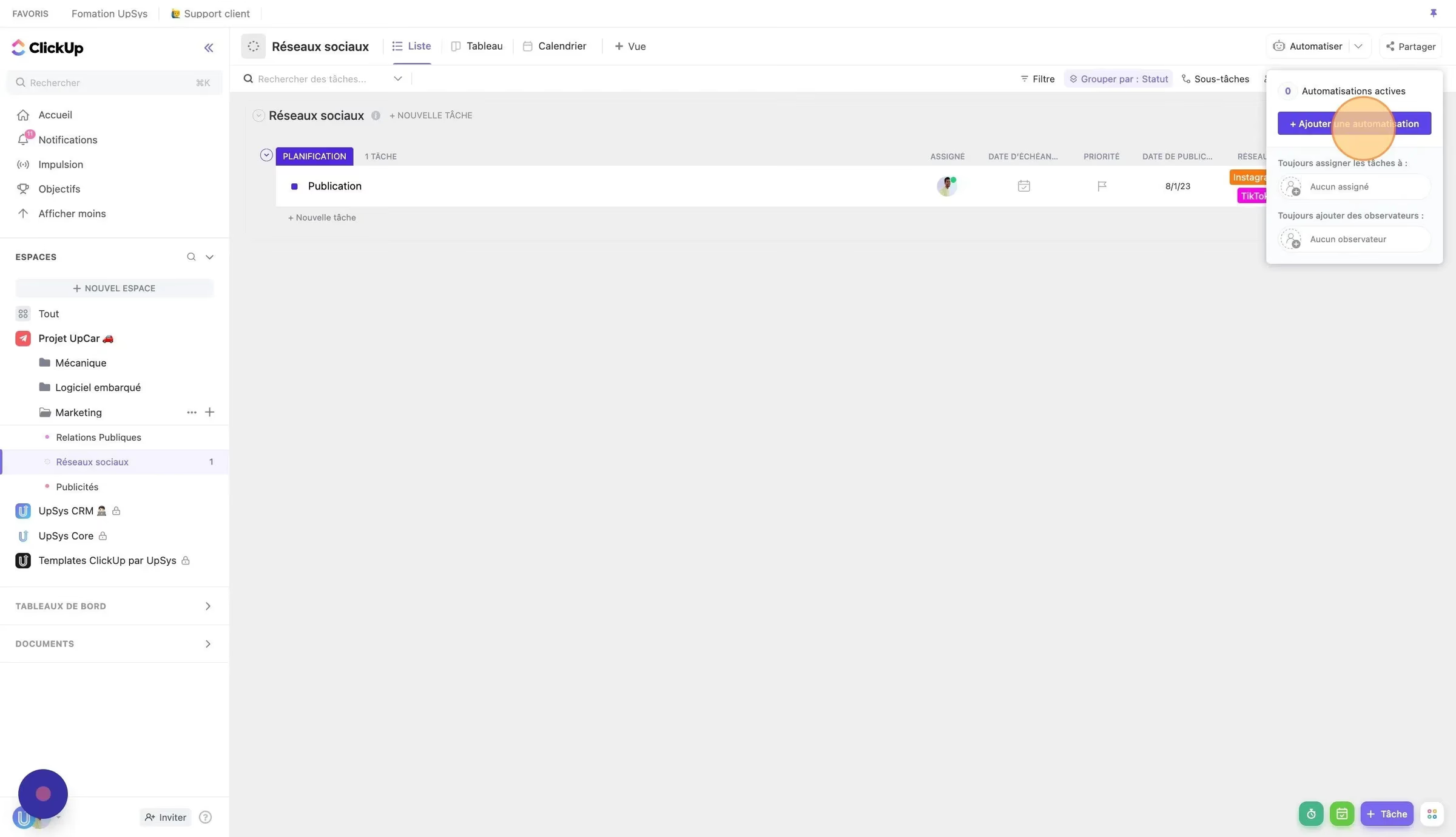
Continuing with our example of automation applied to the social media management process, let's explore some additional automation suggestions that can improve speed and productivity.
Task Creation: When a task is created and the status is set to "proposal", the system automatically assigns the social media manager to the task. This ensures that the right person is alerted to start working on the task immediately.
Design Stage: As the task moves from the "proposal" stage to the "design" stage, the task gets reassigned to the designer, and the due date is set to 7 days later. This automation both delegates the task to the next person in the workflow and sets a clear deadline, making sure that the designer knows they have a week to complete their part.
Validation Step: When the task transitions from the "design" step to the "validation" step, the task is reassigned to the social media manager, and the due date is updated to 2 days later. This automation mirrors the previous one, informing the assignee that they have 2 days to validate the design and move the task to the next step.
Planning Step: When the task moves from the "validation" step to the "planning" step, the task is assigned to the community manager, and the due date is set to 2 days later. This final step ensures that the community manager has a clear timeline to finalize the planning process.
Automate Your Social Media Tasks with ClickUp and Zapier
For more advanced automations, you can use tools like Zapier or Make.com. These tools allow ClickUp to interface with other tools on the web, including social networks like Instagram, Facebook, LinkedIn, or YouTube. These tools are like a bridge that connects ClickUp with thousands of software.
For instance, when a task in ClickUp reaches the "scheduled" status, you can set up an automation to:
Upload the video of the publication to YouTube
Post the image of the post on Instagram or Facebook
Share the content of the post on LinkedIn
These Zapier social media automations can be customized to fit your specific workflow, making your social media management process more streamlined and efficient.
However, some social networks, such as TikTok, do not currently allow automatic content publication. In such cases, you can add a subtask to the ClickUp publication that will remind you to publish it manually.
Frequently Asked Questions
Can ClickUp replace a dedicated social media management tool?
ClickUp works well as a planning and scheduling hub for social media workflows. While it does not post directly to social platforms, you can connect it to tools like Zapier or Make to automate publishing.
What is the best ClickUp view for a social media calendar?
The Calendar view is ideal for visualizing your posting schedule. Pair it with the Table view to manage content details like captions, platforms, and approval status in a spreadsheet-like format.
How do I track social media approvals in ClickUp?
Create a custom status workflow with stages like Draft, In Review, Approved, and Published. Assign reviewers to each task and use Custom Fields to log feedback or approval dates.
Related Resources
Conclusion
Managing social media can be a complex task, but with the right tools and strategies, it can be significantly simplified. ClickUp, with its solid features and integrations, can be a breakthrough for your social media management process. Whether you're a small business or a large organization, ClickUp can help simplify your workflow, improve team collaboration, and improve productivity.
To make the process even easier for you, we've created a complete ClickUp template specifically designed for managing social media tasks. This template incorporates all the steps, views, and automations covered here, providing you with a ready-to-use framework for your social media management workflow. You can download this template for free and start simplifying your social media processes right away.
If you need help setting up ClickUp for your social media management or want to learn more about how ClickUp can benefit your organization, schedule a free consultation with UpSys. Our experts can guide you through the process and help you make the most of this powerful tool.
Keep reading
7 Steps to Build Your Agency CRM in ClickUp
Master CRM with ClickUp: Learn how customer relationship management works and learn how to implement it with our complete step-by-step guide.
Using ClickUp Timesheets: 2026 Tips for Time Tracking
ClickUp timesheets allow teams to track time spent on tasks and projects. Access step-by-step guide to use ClickUp’s time tracking features. Improve your project management with ClickUp timesheets for 2024.

A Step-by-Step Tutorial on ClickUp-Slack Integration
ClickUp and Slack are powerful project management tools. Integrating them elevates productivity. Learn all you need to know about ClickUp Slack integration