ClickUp AI (Brain²) in 2026: what it does, what it costs and how to use it
ClickUp AI is now Brain²
ClickUp AI is the assistant built into ClickUp. It shipped as “ClickUp AI”, then ClickUp renamed it ClickUp Brain, and its site now calls it Brain².The idea hasn't changed: an AI that reads your tasks, Docs and comments, so you stop copying work into ChatGPT and pasting the answer back.
This guide covers what it does today, where to click to use it, and which plan you need for which part. We set ClickUp up for agencies, so it sticks to the features a team uses every week.
We checked each price and plan detail below on ClickUp's pricing page and its Brain page on 13 November 2026.
How ClickUp Brain differs from ChatGPT
ClickUp Brain is ClickUp's name for all of its AI features. It runs on ClickUp's own Brain model, GPT, Claude or Gemini, switched with one click, and each one gets the same access to your workspace.What sets it apart from ChatGPT in a browser tab is context. Open it from a task and it already knows that task's title, description, comments and subtasks. It only shows you what you already have permission to see, and ClickUp says it forbids its AI providers from training on your data.
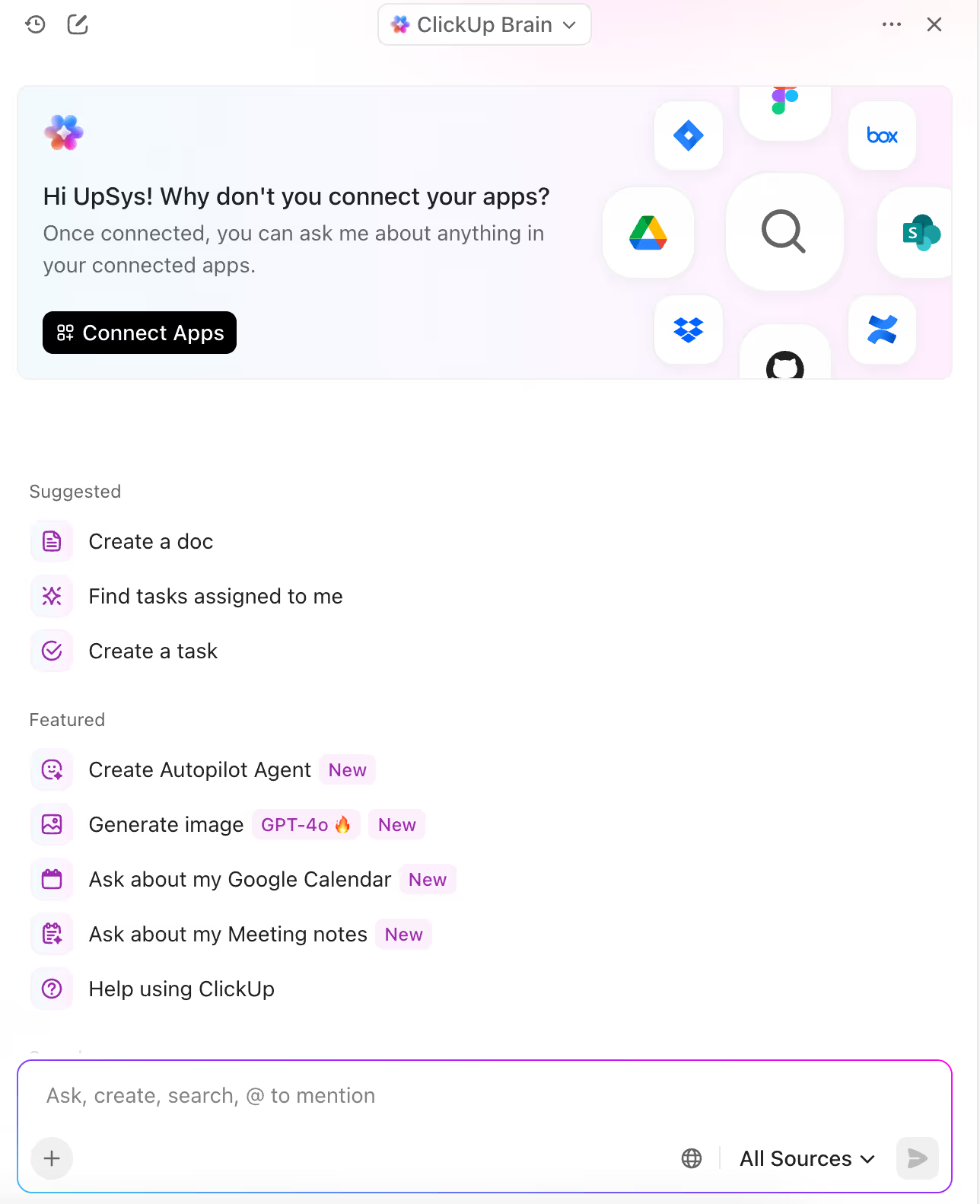
ClickUp Brain features:
Interactive Q&A: Ask questions from anywhere in ClickUp and get context-aware answers based on your workspace data.
Contextual Answers: Receive AI responses specific to the task, doc, or comment you're viewing.
Personalized Standups: Quickly generate standup updates for yourself or your team.
Task and Doc Summaries: Summarize tasks, threads, comments, and documents with one click for quick understanding and updates.
AI Writing Assistant: Write, edit, improve, and translate content directly within tasks, docs, and comments using integrated AI tools.
Automated Project Management: Instantly build tasks and detailed subtasks, generate project updates, and receive smart summaries using AI.
Project Health Checks That Flag Risk Early: Identify stuck or duplicate tasks and receive recommendations to keep projects on track.
Connected apps: Google Drive, GitHub, Salesforce and more, plus any MCP server, so Brain can answer from files that live outside ClickUp.
Super Agents: named agents (Strategist, Developer, Visual Designer and others) that take work on inside your workspace. They spend AI credits.
ClickUp Brain capabilities
Brain does 3 jobs: it writes, it finds what your team already wrote, and it handles project admin.
AI writer for work
ClickUp's AI writing assistant lives right inside your workspace, ready to help you write, edit, and polish content for any project. Fix spelling and grammar, summarize text, generate ideas, translate, and more. It learns your industry's tone and patterns from your team's existing docs and tasks.
Getting Started with AI Writer for Work
You can access the writing assistant in several ways:
Brain icon: In Docs, tasks, or comments, click the Brain icon to open the writing assistant.

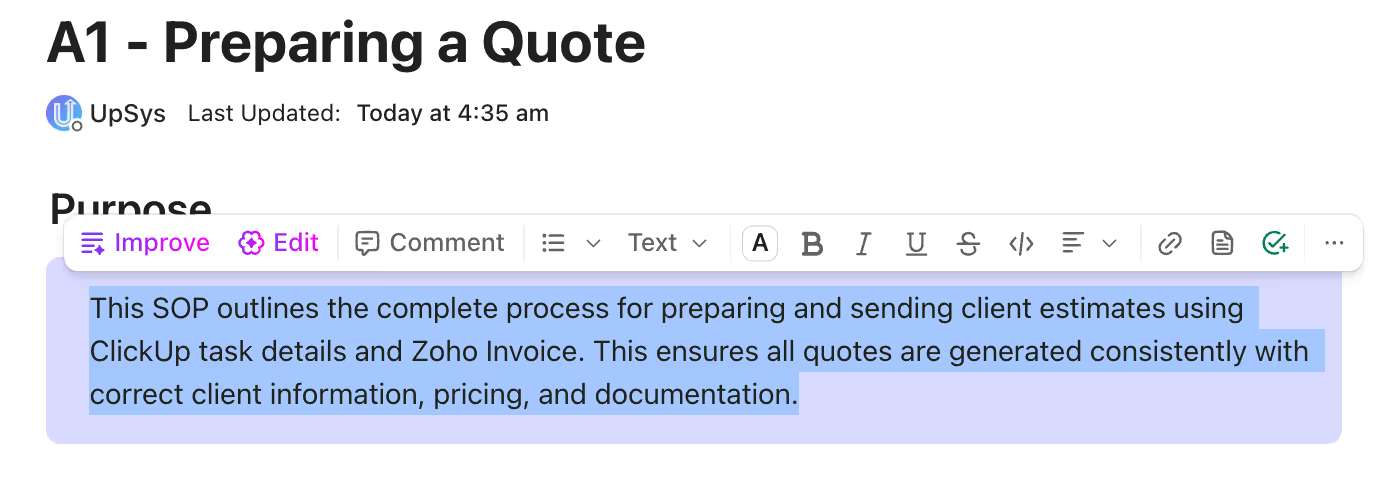
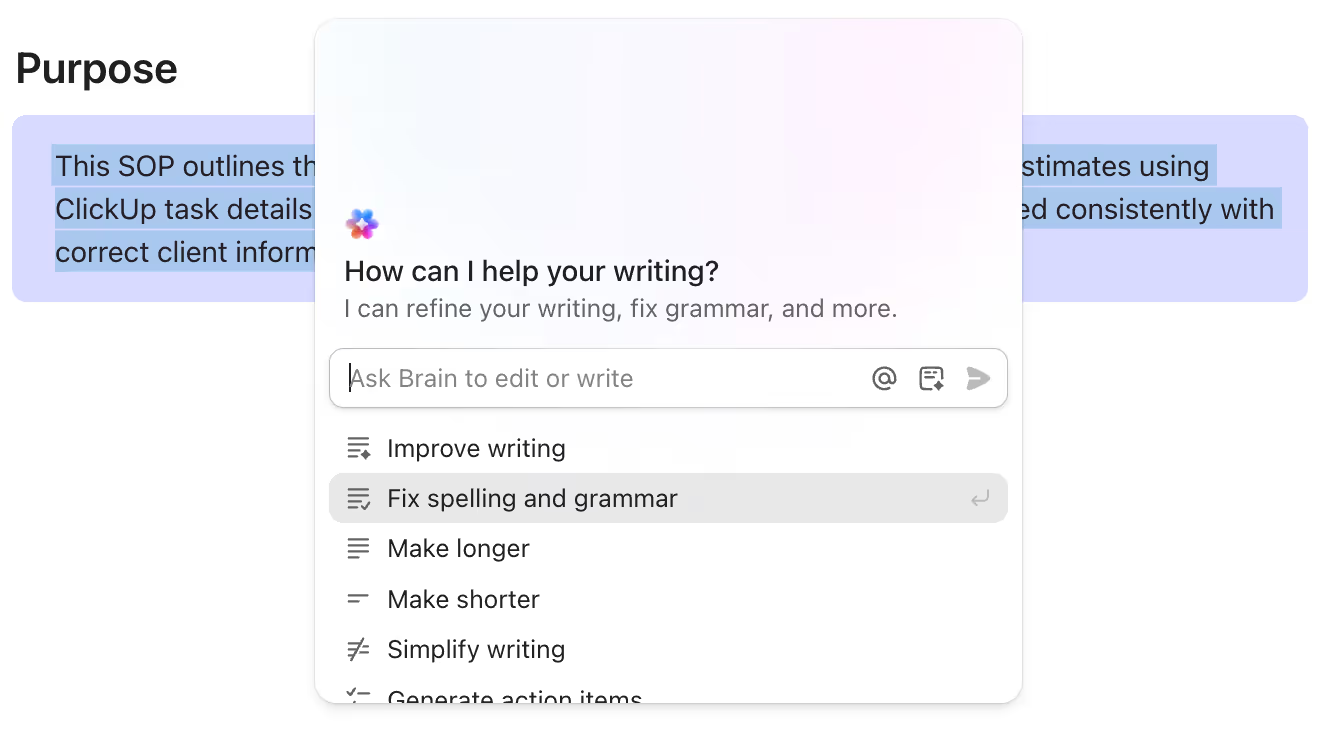
Text Toolbar: Highlight any text, and the toolbar appears. Use the “Improve” or “Edit” options to access writing tools.
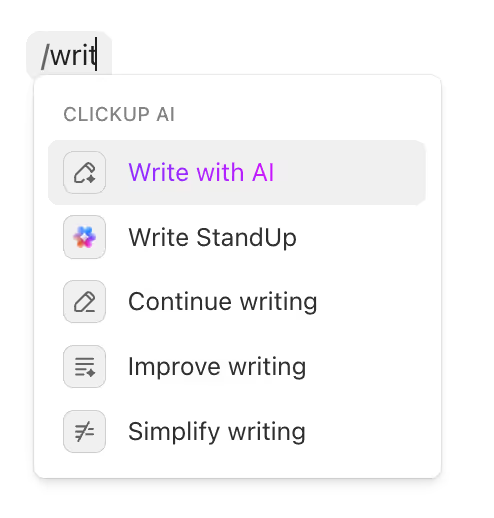
/Slash Commands: Type /write or /writing anywhere in ClickUp to quickly bring up the writing assistant.
Writing and Editing Tools
The writing assistant offers a range of tools to help you create and polish content:
Improve writing: Make your text clearer and easier to read.
Fix spelling and grammar: Correct errors instantly.
Adjust length: Expand or shorten your content as needed.
Simplify: Turn complex sentences into plain language.
Create action items: Convert notes or paragraphs into a checklist.
Continue writing: Add more content to your draft without losing context.
Explain or summarize: Break down long or complicated content, or get a quick summary.
Translate: Instantly switch your text to another language, supporting English, French, Spanish, and more.
Custom Prompts and Editing
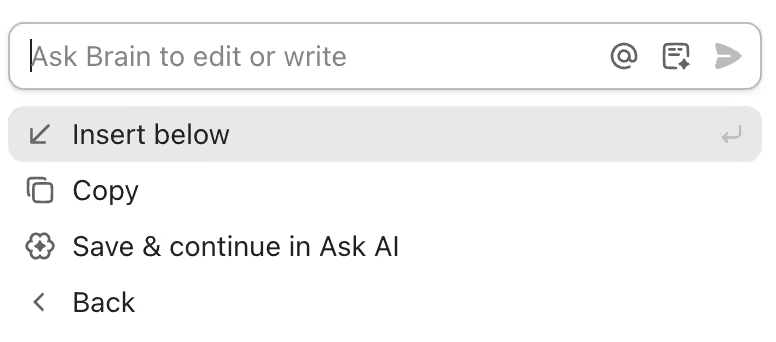
You don't have to stick to the preset options. You can enter your own prompt to get content that fits your project or audience. Paste a draft and ask for specific changes and the assistant will return a revised version. You can also choose the tone and style, from professional to casual, to match your needs.
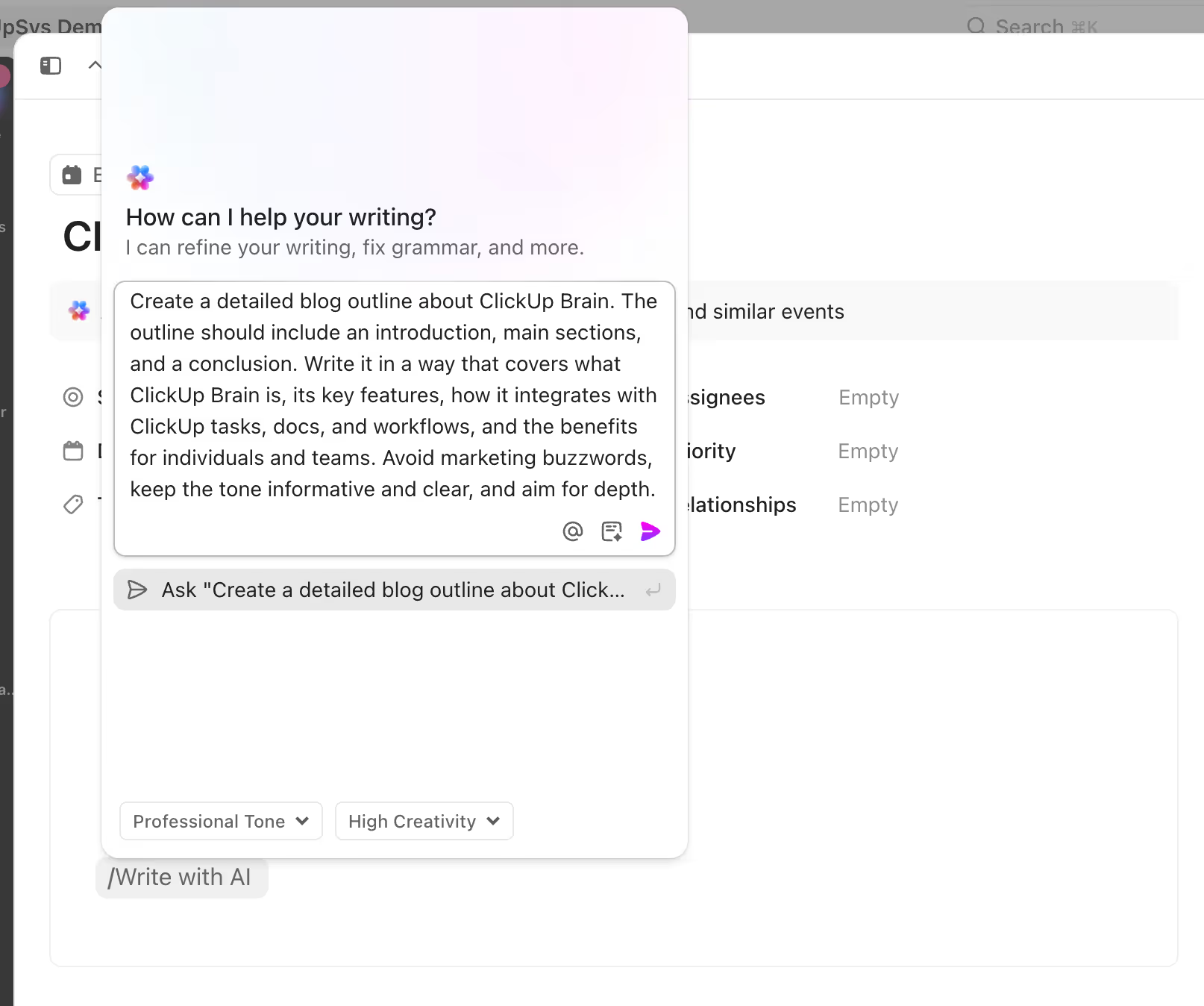
Flexible Output Options
After generating content, you can:
Insert the new content below your existing text.
Copy the result for use elsewhere.
Continue refining your work with the assistant until it's just right.
AI knowledge manager in ClickUp
Perhaps the most forward-looking aspect of ClickUp Brain is its knowledge management. This feature is an internal Q&A system that reads your workspace's documentation, processes, and historical data to provide instant answers.
Retrieving SOPs, job posts & processes instantly
ClickUp Brain can answer team questions with precision, such as:
“What job offers need publishing?”
“How do we handle ClickUp notifications?”
“What's the process for onboarding?”
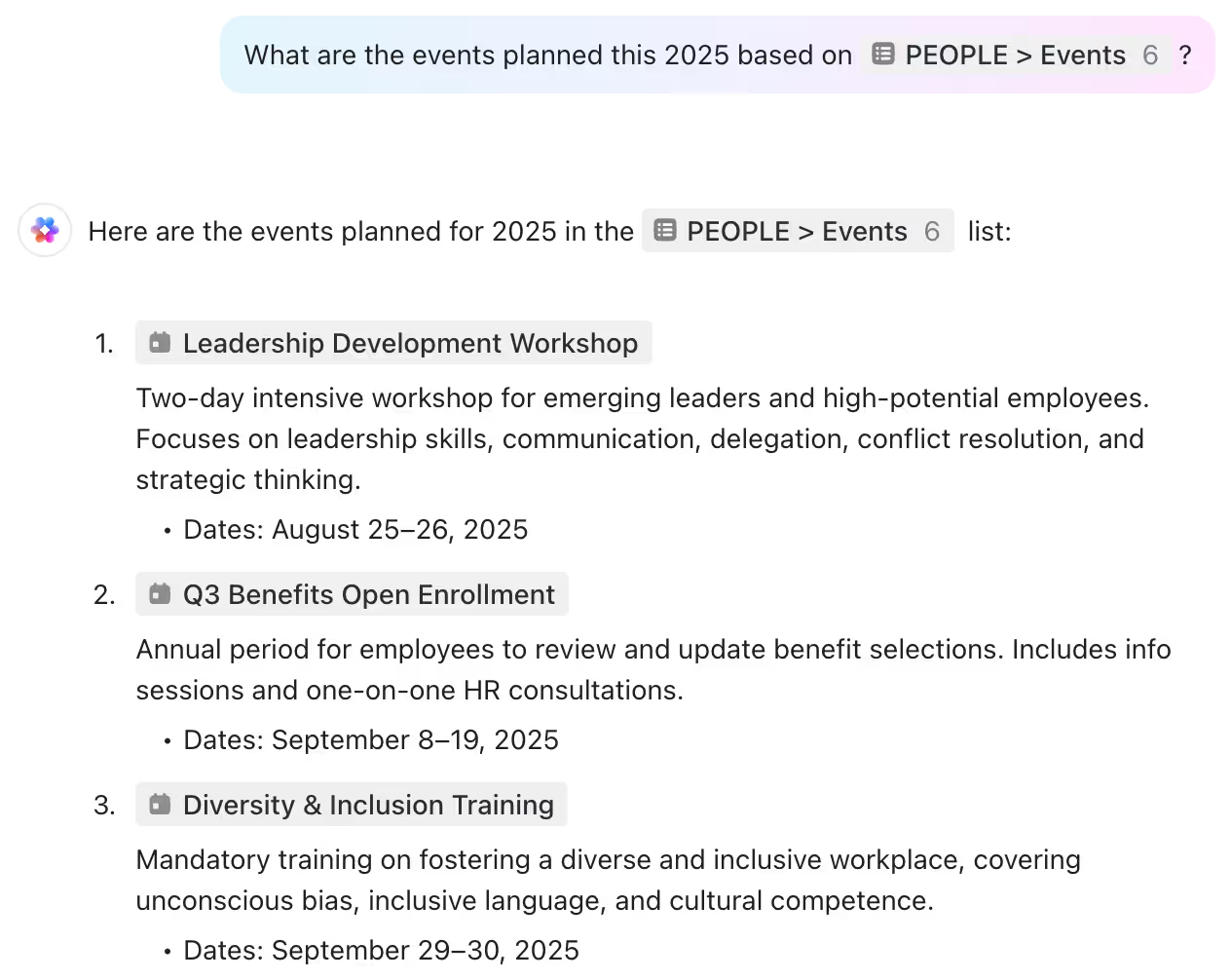
By scanning docs, task descriptions, subtasks, and even past comments, it delivers accurate, detailed responses in seconds. For example, if a team member asks “What are the events planned this 2025?” ClickUp Brain will retrieve the relevant SOP or checklist from your workspace.
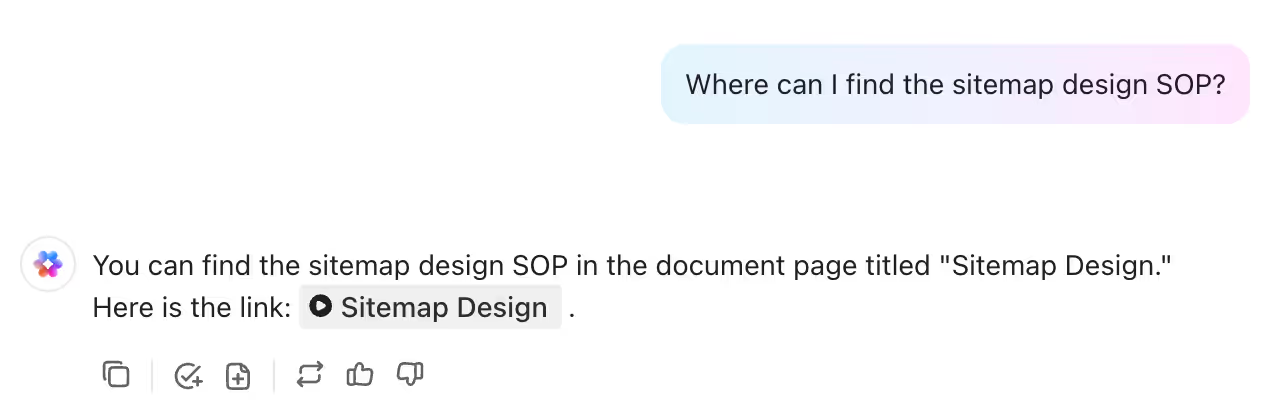
Tasks, Docs & comments made searchable
Your team doesn't have to learn where things live. They ask, and Brain searches tasks, Docs and comments across the whole workspace. The more your team writes down, the more it finds.
AI project manager in ClickUp
The AI Project Manager is where ClickUp Brain really begins to show its unique value. These features use the context of your projects to automate administrative and management tasks.
Instantly building tasks and detailed subtasks
Planning a new project often involves the tedious work of breaking down large objectives into smaller and manageable tasks. The AI Project Manager automates this process.
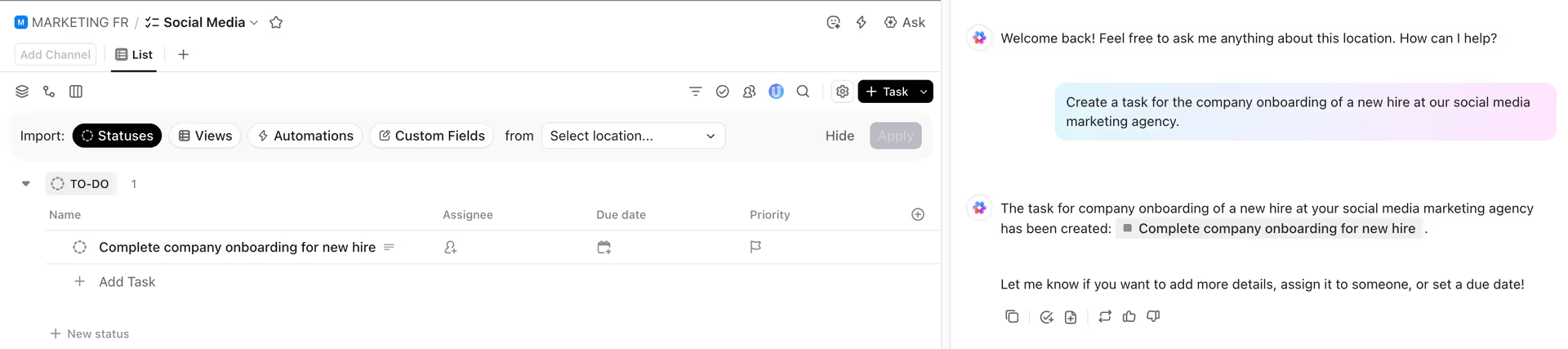
From any list view, you can click "Ask AI" and describe the task you want to create. For example: "Create a task for the company onboarding of a new hire at our social media marketing agency."
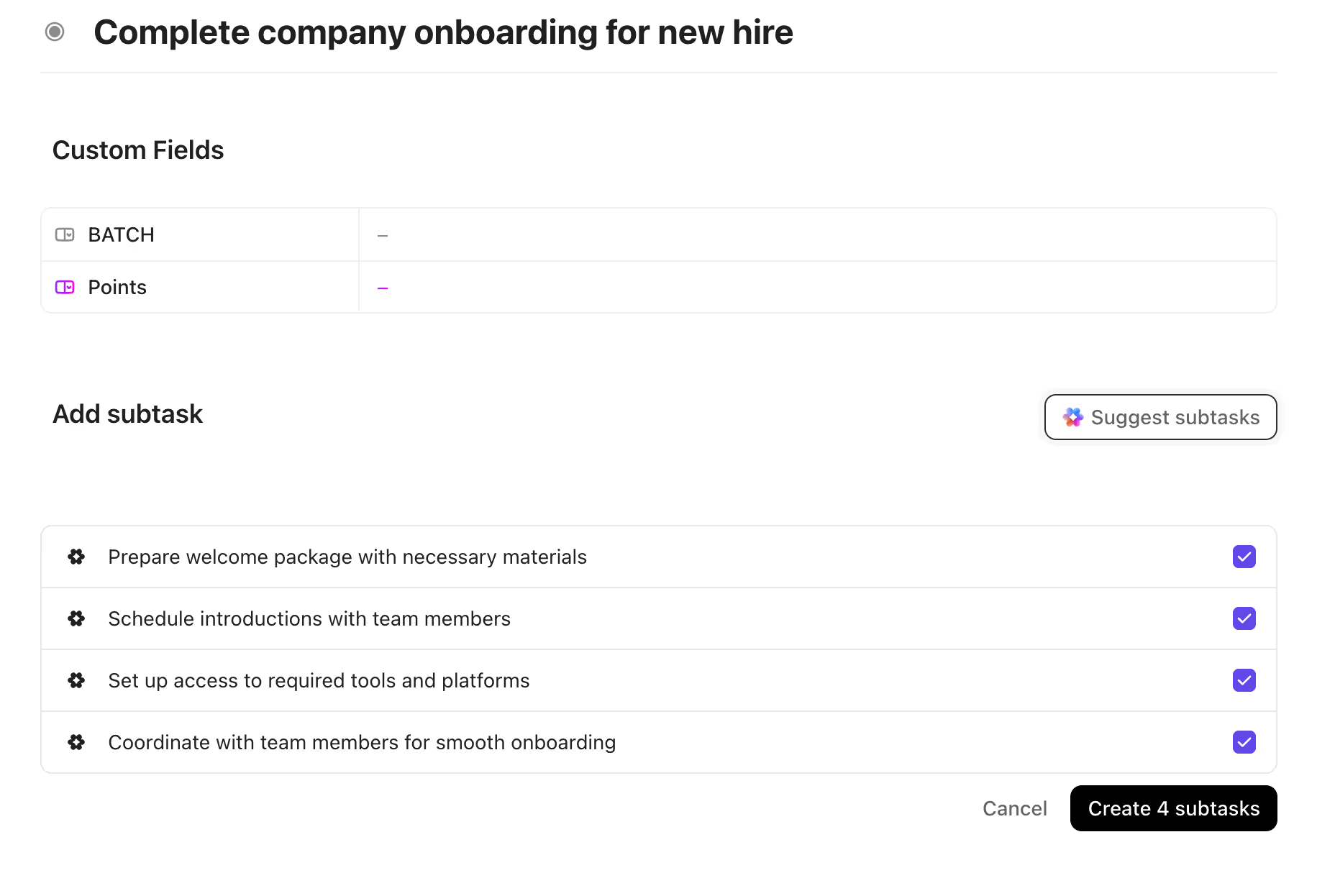
The AI will generate a task with a detailed description outlining the entire onboarding process. Once you create the task, you can move through to its subtask section and click "Suggest Subtasks." The AI reads the main task's content and automatically generates a complete list of relevant subtasks.
This feature alone can turn hours of project setup into a few minutes of work, standardizing your processes along the way.
Getting smart summaries and progress updates
Complex tasks can accumulate long comment threads and a flurry of activity, status changes, due date adjustments, and reassignments. For a manager trying to catch up, reading through this activity log is time-consuming.
The AI offers 2 ways to simplify this:
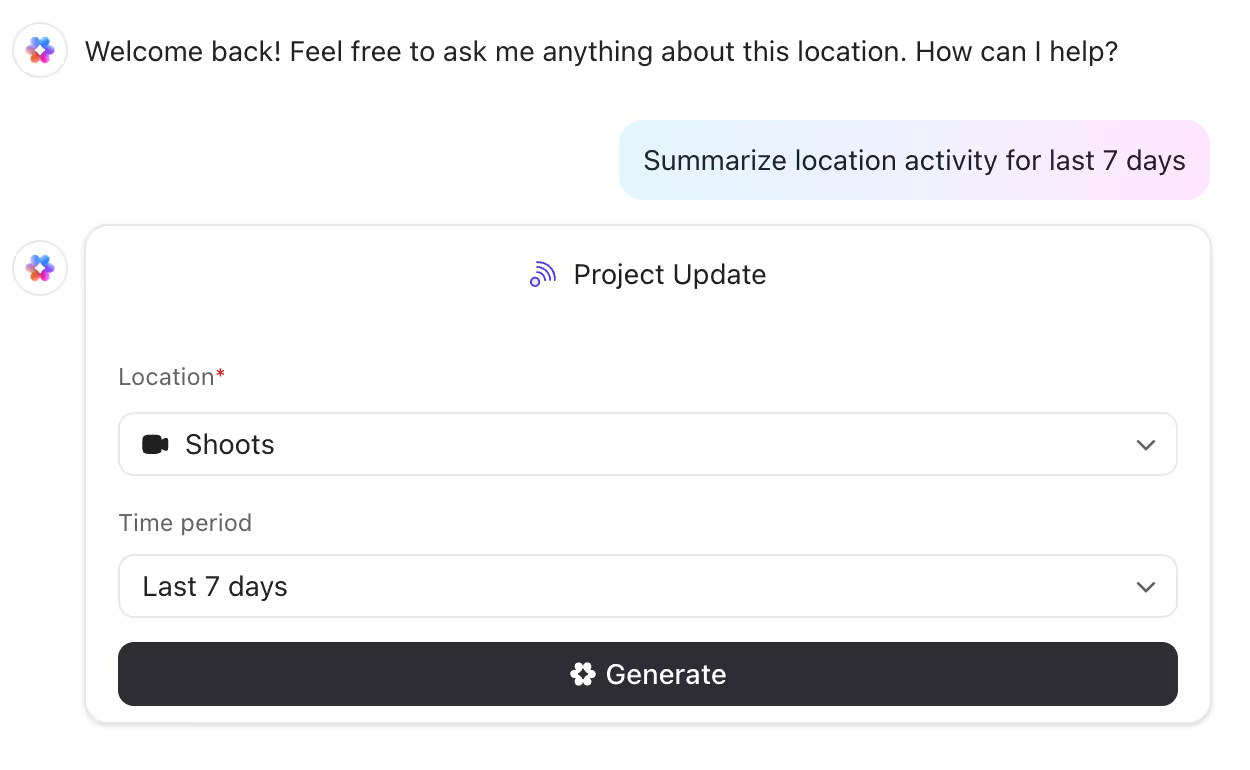
AI Project Update: This feature summarizes what happened on a task over a specific period (e.g., today, this week). It presents a factual list of changes, such as "Status changed: 'To Do' to 'In Progress'" or "Diane joined the task as an assignee."
AI Summary: This provides a more narrative overview of the task. It synthesizes the task description, recent changes, and comment conversations into a written paragraph. For example, it might state: "The goal of this task is to onboard a new hire. Diane needs to make sure the process runs smoothly, and the due date is set for July 26th."
Automating daily standups for complete clarity
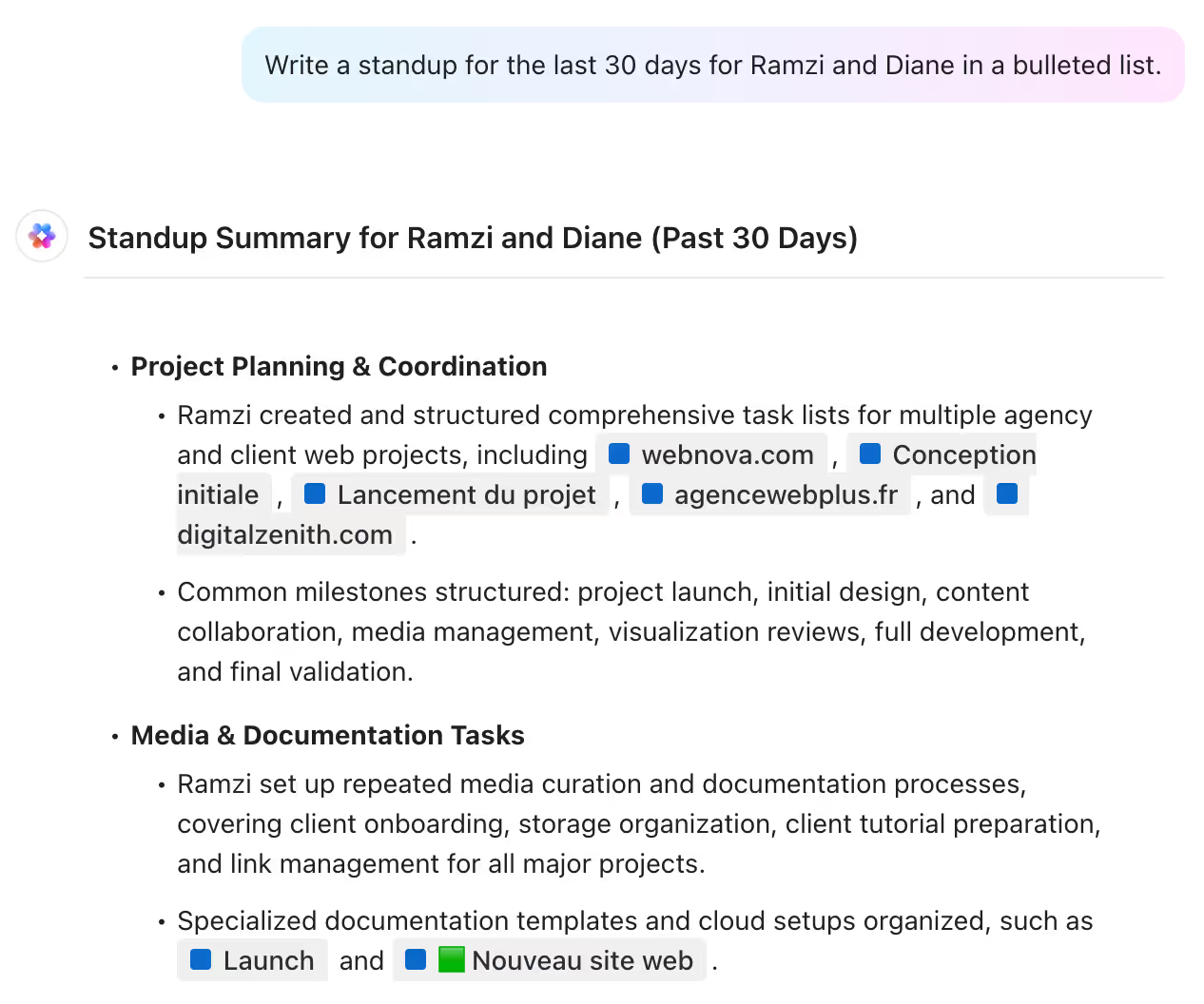
One of the most powerful project management features is the ability to generate "standups." This function pulls activity data for selected team members across all their assigned tasks, giving you a complete overview of their work.
You can ask the AI: "Write a standup for the last 7 days for Ramsey and Diane in a bulleted list."
The AI will generate a report organized by person, listing every significant action they took. This feature is particularly useful for weekly team meetings, one-on-ones, or simply for managers to stay informed about progress without interrupting their team.
Running project health checks early
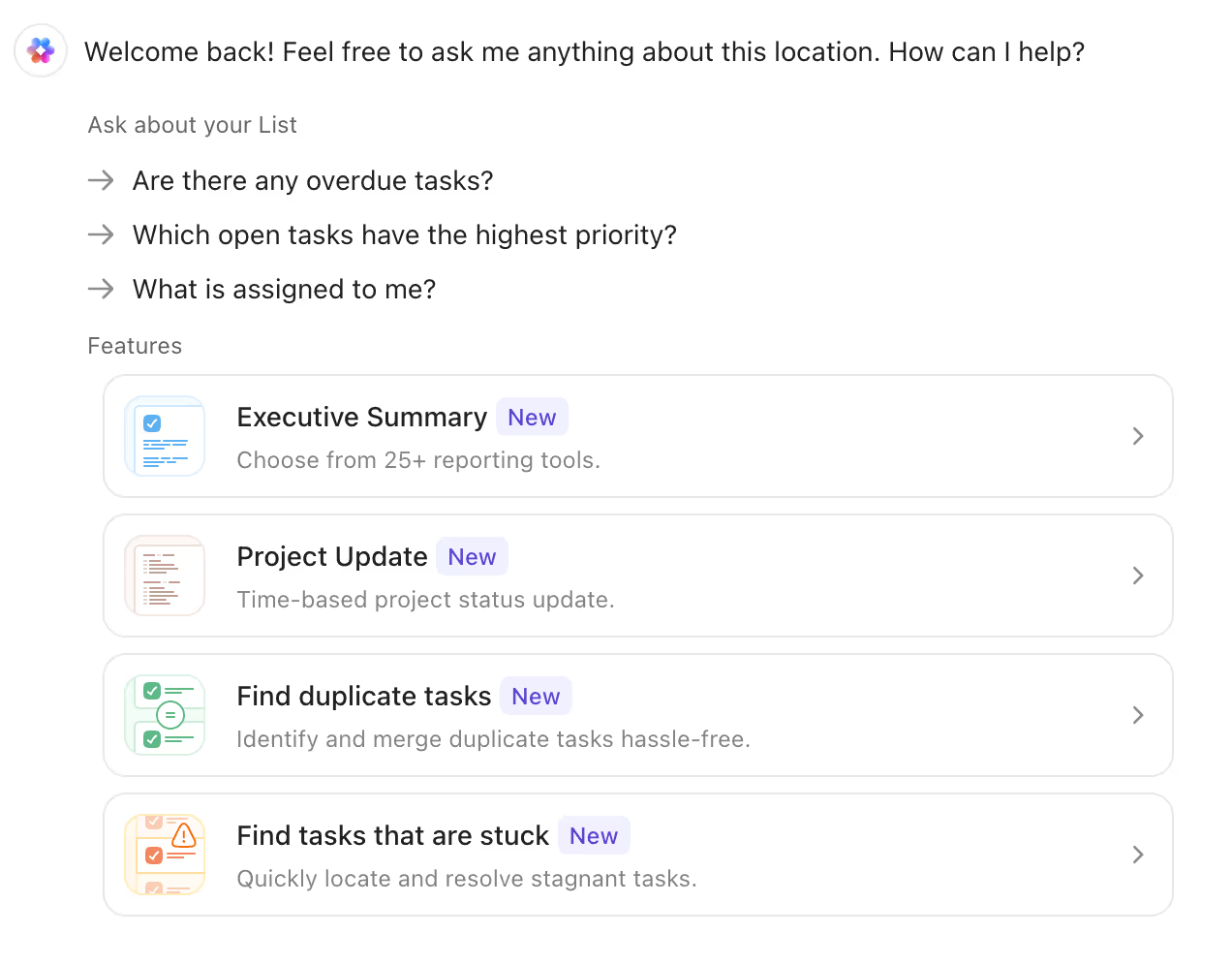
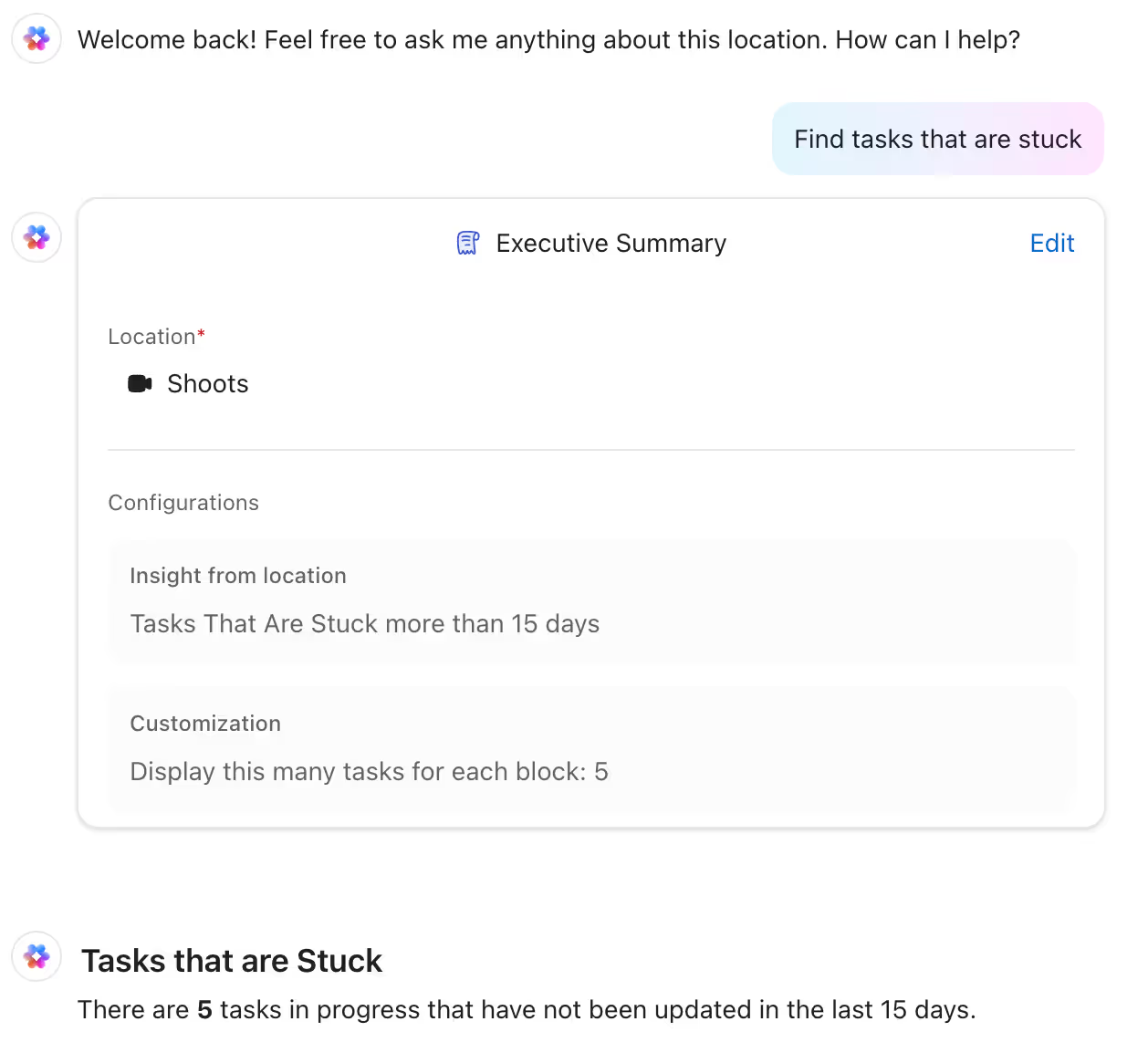
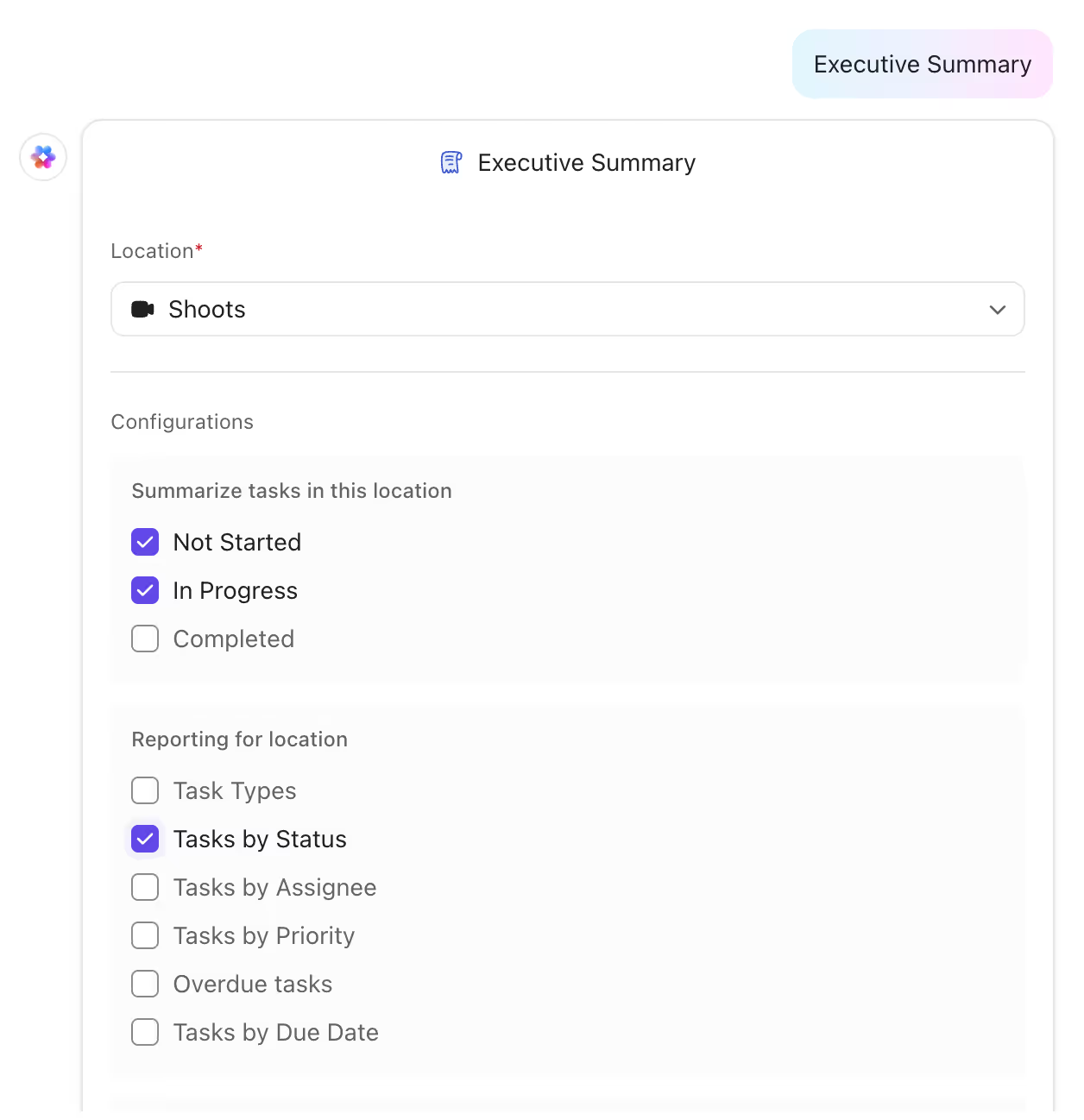
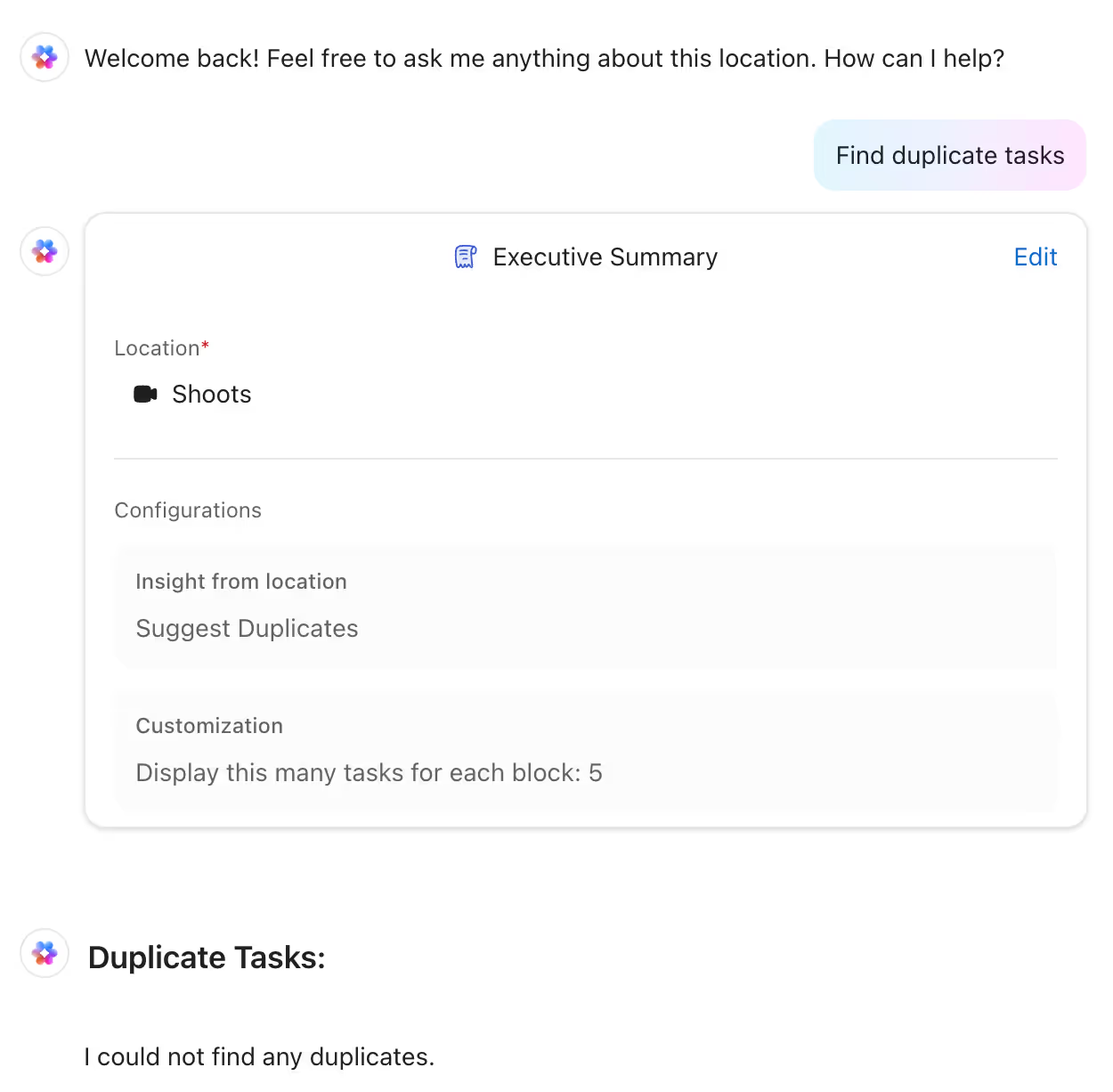
The AI can also act as a vigilant assistant, scanning your projects for potential problems. From a list view, you can ask the AI to perform health checks, such as:
Find Stuck Tasks: The AI identifies tasks that are overdue but have seen no recent activity, flagging potential bottlenecks.
Find Duplicate Tasks: It scans for tasks with similar names or content that someone may have created by mistake.
This allows managers to proactively address issues before they derail a project timeline.
How to open ClickUp AI
You can open Brain 3 ways.
From the toolbar. The AI button at the top of ClickUp opens Brain from anywhere in your workspace. From a comment or a Chat message, type @Brain and ask your question in place.

You can also access ClickUp AI directly within:
Task descriptions
Comments
Custom fields
The Command Center
Docs
Simply click the Brain icon in these locations to generate relevant recommendations and insights.

Connect Brain to files outside ClickUp
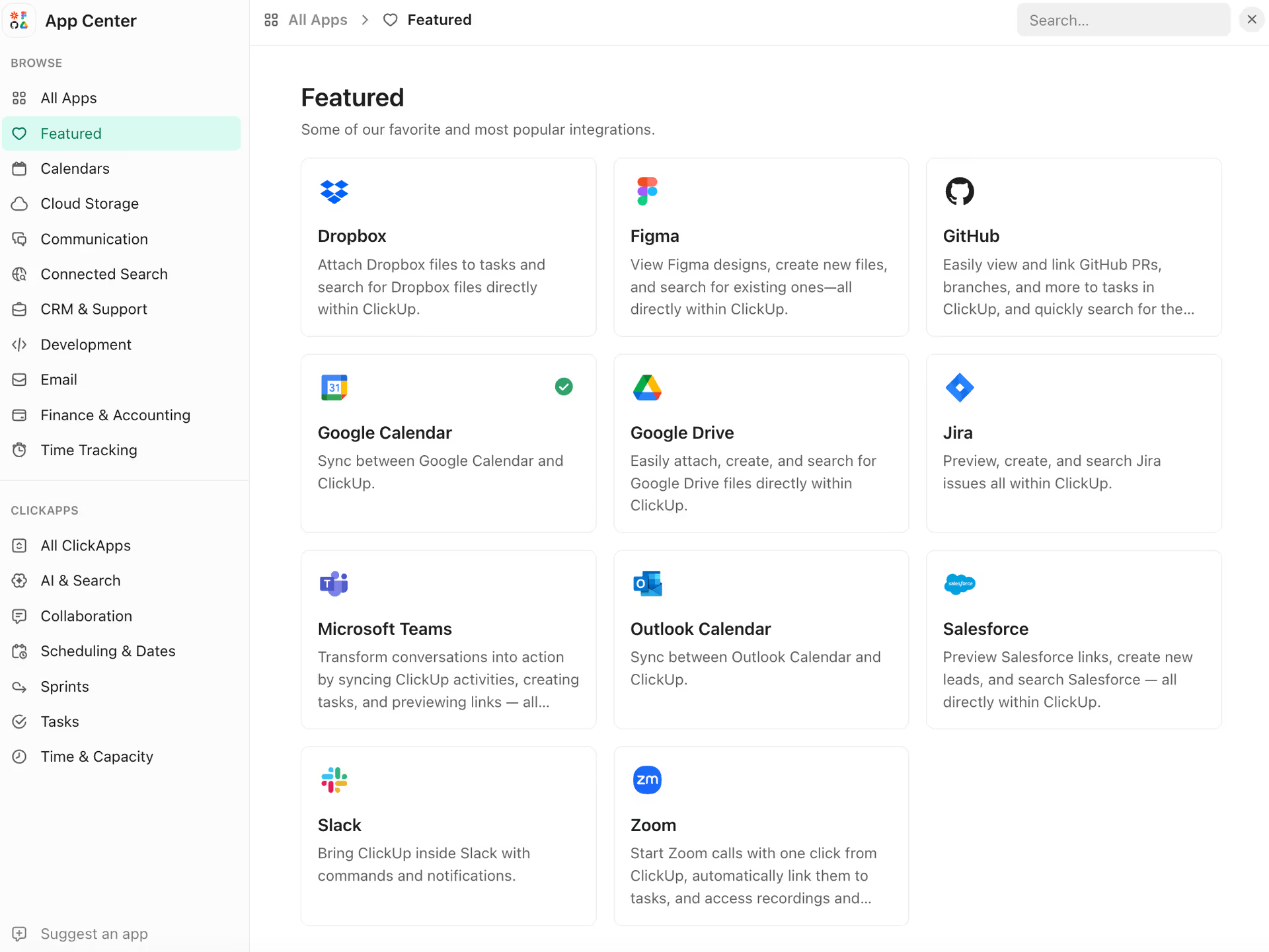
Brain can answer from files that live outside ClickUp. These are the connected apps its Brain page names:
Google Drive
Dropbox
Box
GitHub
Salesforce
Any MCP server
Setting up connected software
To use these integrations:
Move through to Settings → App Center
Connect your desired applications
Authorize appropriate access permissions
Allow initial synchronization to complete
Once connected, ClickUp Brain indexes the content from these platforms, making it searchable through AI queries.
Cross-platform knowledge retrieval
With connected software, you can:
Ask ClickUp Brain to locate specific files (e.g., "Give me access to the client journey example slides in Google Drive")
Request content summaries from external documents
Ask questions about information in connected platforms
Reference code from GitHub or records from Salesforce
Ask “where's the latest proposal deck?” and Brain returns the file, whether it sits in Drive or Dropbox. It reads through the account you connected, so it sees the same folders that account sees.
Which ClickUp plan includes AI
Brain² comes with every current ClickUp plan. What changes from plan to plan is which models you get and how many AI credits. Chatting with Brain doesn't use credits. Super Agents, AI Fields and AI Automations do.
Free Forever ($0): a Brain² trial and 500 credits, once, for the whole workspace.
Core ($9 a user a month, billed yearly): a Brain² trial with premium models on trial, and 1,000 credits a user a month.
Business ($17 a user a month, billed yearly): premium models (GPT, Claude, Gemini) with daily, weekly and monthly limits, unlimited standard models, and 1,500 credits a user a month.
Enterprise (custom price): higher premium model limits, unlimited AI Notetaker, and 3,000 credits a user a month.
Max ($100 a user a month, billed yearly): the highest premium model limits, unlimited AI Fields, AI Automations and AI Notetaker, and 10,000 credits a user a month.
The workspace shares one pool of credits, and $10 buys 10,000 more. Your conversations with Brain stay private: an admin can't read them.
One catch for older workspaces. If you signed up before this pricing, you may still be on an older plan with the Brain AI add-on, and ClickUp says workspaces on earlier plans keep their existing limits. Check the plan name on your billing page before you compare your bill with the list above.
Our read: for a team that mostly wants summaries, standups and answers from its Docs, Business is where Brain stops being a trial. Max costs almost 6 times as much per user. It only pays off if Super Agents or AI Fields run on most of your tasks every day.
For the full plan comparison, see ClickUp's pricing page.
ClickUp has repriced its AI more than once. For how credits get spent and what ClickUp's AI terms say, see ClickUp AI pricing.
Real-world use cases of ClickUp AI
Here's what teams ask it for, department by department:
Sales: Quickly draft sales emails and create pitches customized to prospects. Use AI to analyze competitors by summarizing their websites, products, and marketing strategies. Summarize sales meetings and generate action items.
Marketing: Generate high-quality ad copy and landing pages improved for conversions. Create SEO audits and strategies to boost organic rankings. Run market research and analysis to guide campaigns and positioning.
Customer Support: Use AI to respond to support tickets, offering a summary of the issue and potential solutions. Generate FAQs by having AI analyze past tickets and identify common questions. Create onboarding checklists and offboarding surveys to improve the customer experience.
HR: Draft accurate job descriptions by providing an overview of the role and required skills. Screen resumes to surface the most qualified applicants. Create employee handbooks and onboarding documents to align and engage staff.
Product: Use AI to generate product specs from high-level descriptions of a new feature. Create user stories and PRDs from customer needs and product requirements. Summarize user research by providing transcripts and notes from interviews.
Engineering: Generate code templates for common use cases like forms, dashboards, and CRUD apps. Summarize technical docs to explain them simply to non-technical teams. Create release notes by summarizing software changes from Git commit history.
Tips and best practices for ClickUp AI
Follow these tips to maximize productivity with ClickUp AI:
Give AI highly specific prompts and constraints for the best results.
Iterate on the output. Re-prompt AI to refine and improve the generated text.
Use AI as a starting point. The output often needs some human refinement and editing.
Take advantage of AI's speed for repetitive tasks. But carefully review anything externally facing.
Try different tones of voice for different audiences and use cases. Adjust the creativity level too.
Feed AI relevant contextual information to improve quality. Like support ticket samples or docs.
Use AI as a brainstorming partner. Create multiple variations of things like ad copy.
Our verdict on ClickUp AI
Brain is most useful where your work already lives in ClickUp: summing up a long task, writing a standup from a week of activity, or finding the SOP someone wrote last year. It can't answer from a Doc nobody wrote. If your team doesn't write its processes down, start there before you pay for more AI.
Start on the plan you have. If the trial feels thin, Business at $17 a user is the first plan with premium models outside a trial. Go further only when a Super Agent or an AI Field is doing real work every day.
Questions
Is ClickUp AI the same as ClickUp Brain? Yes. ClickUp first called it ClickUp AI, then ClickUp Brain, and its site now says Brain². It's one product under 3 names.
Is ClickUp AI free? It comes with every plan, but Free Forever and Core only get a trial. Free Forever's 500 AI credits are a one-time grant for the whole workspace.
Which AI model does ClickUp Brain use? Your pick. Brain² switches between ClickUp's own Brain model, GPT, Claude and Gemini, and each one reads the same workspace context.
Does ClickUp train AI on my data? ClickUp says it forbids third-party AI providers from training on your data and holds them to zero-retention terms. Brain also only shows what you already have permission to see.
UpSys support for ClickUp
At UpSys, we specialize in helping teams improve their use of ClickUp and use ClickUp AI.
Our expertise includes:
ClickUp setup and configuration to match your workflows
Consulting on best practices for ClickUp AI adoption
Training for your team on ClickUp and ClickUp AI features
Workflow optimization and custom automation with ClickUp AI
Ongoing support and coaching for advanced ClickUp AI usage
Contact UpSys to customize ClickUp and ClickUp AI to your team's unique needs. Take your project management further with AI-powered speed.
Keep reading
How to structure your ClickUp hierarchy (and avoid costly workflow mistakes)
Discover the best way to structure your ClickUp workspace. Learn how spaces, folders, lists, tasks, subtasks, and checklists work and how to avoid common pitfalls.
Dec 10, 2025 · 9 min read
How to use ClickUp: Getting started with ClickUp
Looking to get started with ClickUp? Check out this ultimate guide for beginners on how to effectively use ClickUp to manage tasks, projects, and views.
Aug 26, 2024 · 14 min read

How to set up ClickUp GitHub integration: Ultimate guide
This article provides a step-by-step guide on how to set up ClickUp GitHub integration for enhanced project management. Learn all about GitHub ClickUp integration to improve workflow in 2024.
Jul 8, 2024 · 11 min read