

Tracking Best Practices in ClickUp
Q: How can managers track and improve ClickUp best practices within their team?
A: Managers can improve how their team uses ClickUp by setting up "Bad Practices" view. This view helps spot tasks that are missing important details like who's doing what, when it's due, how long it should take, and if it's overdue. By keeping an eye on these key metrics through a complete dashboard, managers can easily find areas that need work, making it simpler to manage projects and improve team productivity.
Introduction
Managing projects effectively means both having the right tools but knowing how to use them well. ClickUp is a powerful project management software, that helps simplify your work. This guide will show you how to use ClickUp's features to their fullest, making sure your team works smarter.
Understanding ClickUp Best Practices
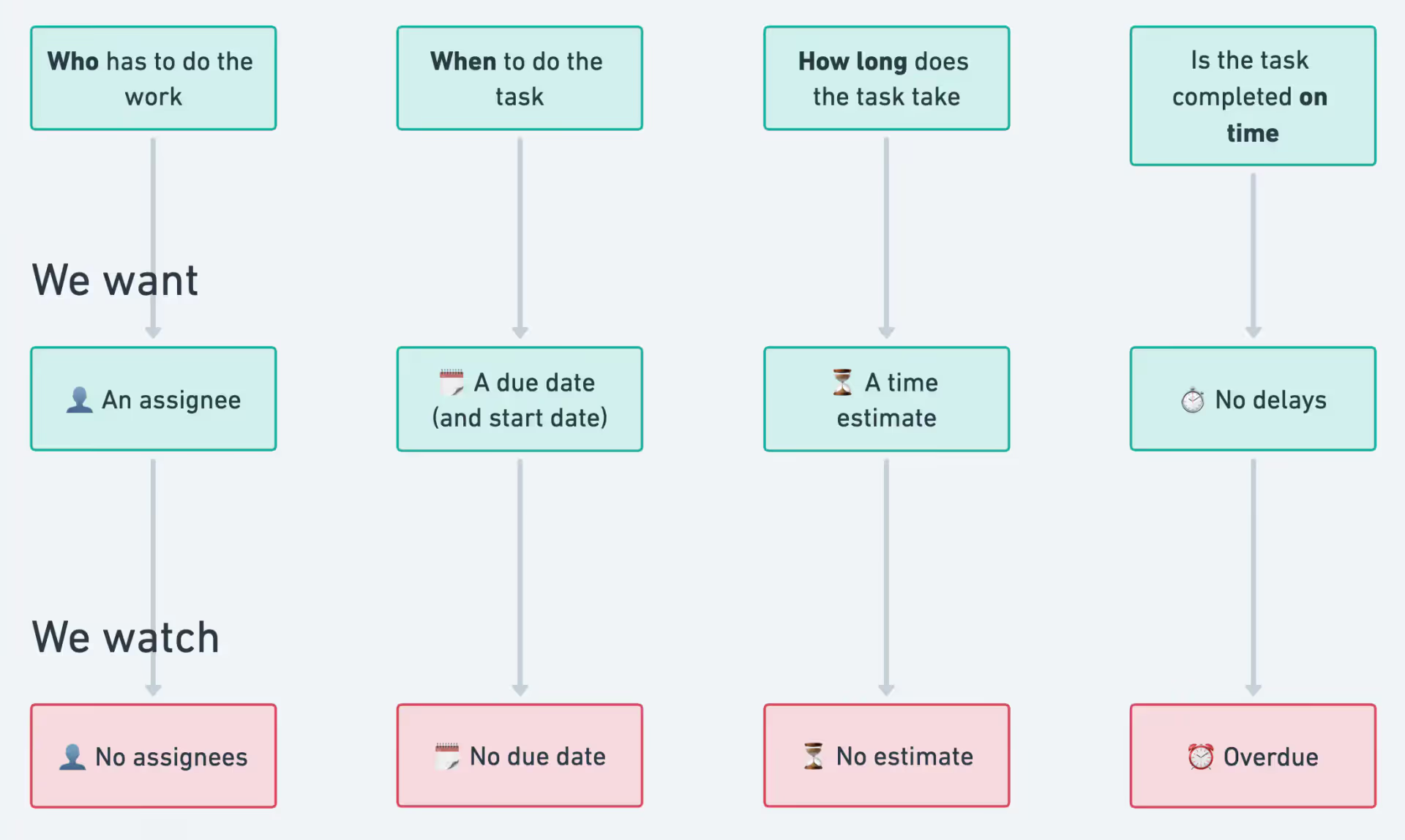
Key Metrics to Track
There are 4 key details every task in ClickUp should have:
Assignee: Who is responsible?
Due Date: When should it be done by?
Time Estimate: How long will it take?
Status: Is the task on track or behind?
Knowing these details makes it easier to manage projects, keep everyone accountable, and make sure work is balanced.
Why These Metrics Matter
You might wonder why these specific metrics are so important. Let's break it down:
Assignees make sure everyone knows who’s doing what.
Due Dates help everyone prioritize and meet deadlines.
Time Estimates help you plan better and understand your team’s capacity.
Tracking Overdue Tasks shows where things are stuck, helping you fix bottlenecks.
Tracking these things turns ClickUp from a glorified to-do list into a real powerhouse for planning, managing your team, and seeing how you're doing.
Creating a Bad Practices View
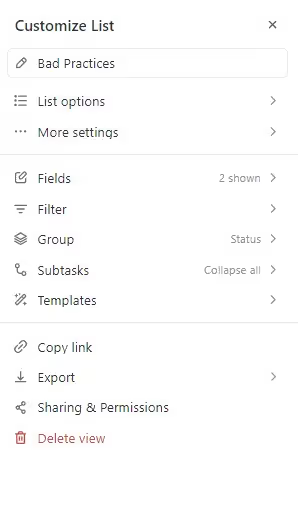
Okay, so now we know what to keep an eye on. Let's talk about how to actually do it. First thing's first: we're going to make a "Bad Practices" view in ClickUp.
Setting Up Filters
Create a new List view at the Space level (or at the Everything level if you want to track across the entire workspace).
Name the view "Bad Practices".
3. Set up the following filters:
Assignee is not set
Due date is not set
Time estimate is not set
Due date is overdue
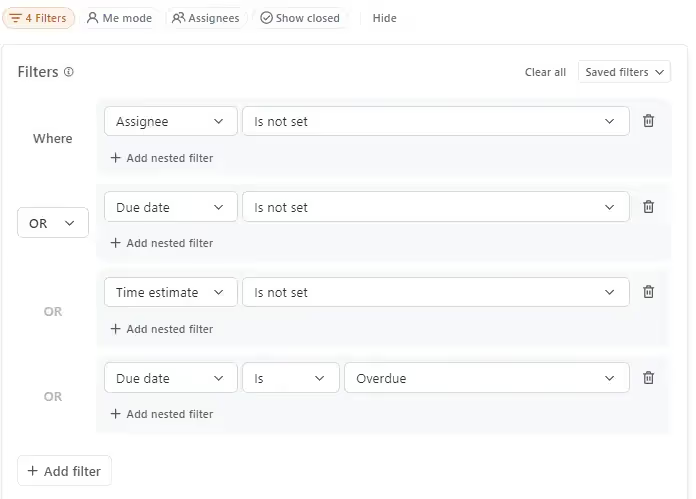
Use the "OR" combination to include tasks that meet any of these criteria.
Customizing the View
To make your Bad Practices view more effective:
Display only relevant information, such as due date and time estimate.
Consider adding additional filters, like tasks without a start date, if that's important for your team's capacity planning.
Using the View Effectively
Think of the 'Bad Practices' view as your center for spotting tasks that are missing important details. Here’s how to make the best use of this view:
Regular Checks: Keep an eye on this view to quickly find tasks that are incomplete.
Delegate: Assign team members to fill in the gaps where information is missing.
Educate: Use this view as a learning tool to show your team the importance of complete task details.
Track Improvements: Watch how the number of incomplete tasks decreases as your team gets better at using ClickUp. This reduction shows that your team is adopting better work habits.
By keeping this view up to date, you are building a culture of detailed and efficient project management rather than ticking boxes.
Building a Complete Dashboard
While the 'Bad Practices' view is great for handling immediate issues, a well-crafted dashboard can do much more. It lets you see the bigger picture by tracking trends and giving you deeper insights into how your team uses ClickUp over time.
Use it to watch how changes in your team's behavior improve project management and team performance. This tool is your key to understanding and improving your team’s workflow.
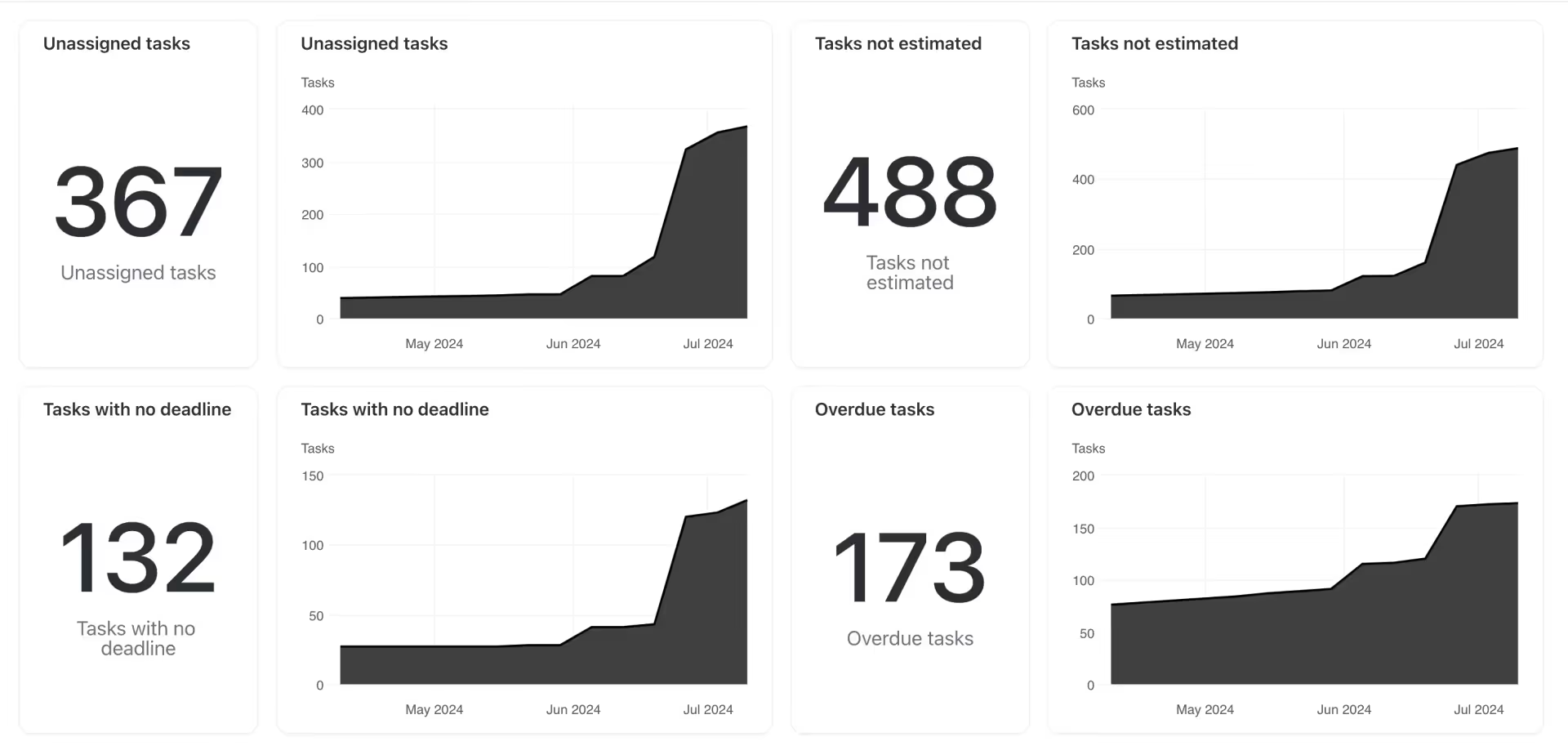
Essential Widgets and Metrics
Your ClickUp best practices dashboard should include the following widgets:
No Assignee: Track tasks without an assigned team member.
No Estimate: Monitor tasks lacking time estimates.
No Due Date: Identify tasks without set deadlines.
Overdue Tasks: Keep an eye on delayed tasks.
Statuses Over Time: Observe how task statuses change over weeks or months.
Tasks by Assignee: View task distribution among team members.
Cycle Time: Monitor the average time from task creation to completion.
Who's Behind: Identify team members with many overdue tasks or unread notifications.
ClickUp Best Users: Recognize team members who are actively using ClickUp.
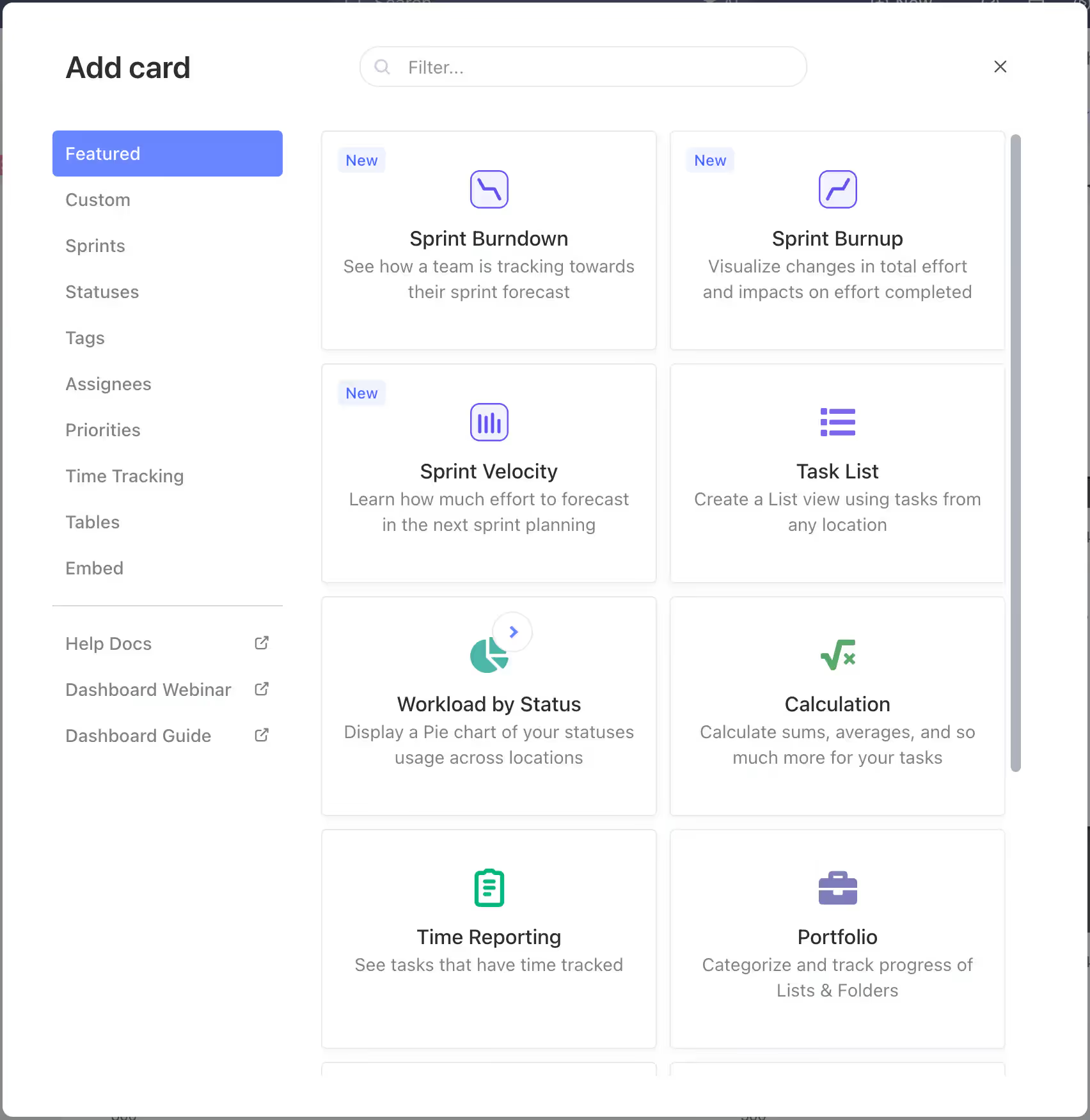
Creating and Customizing Widgets
When setting up your dashboard:
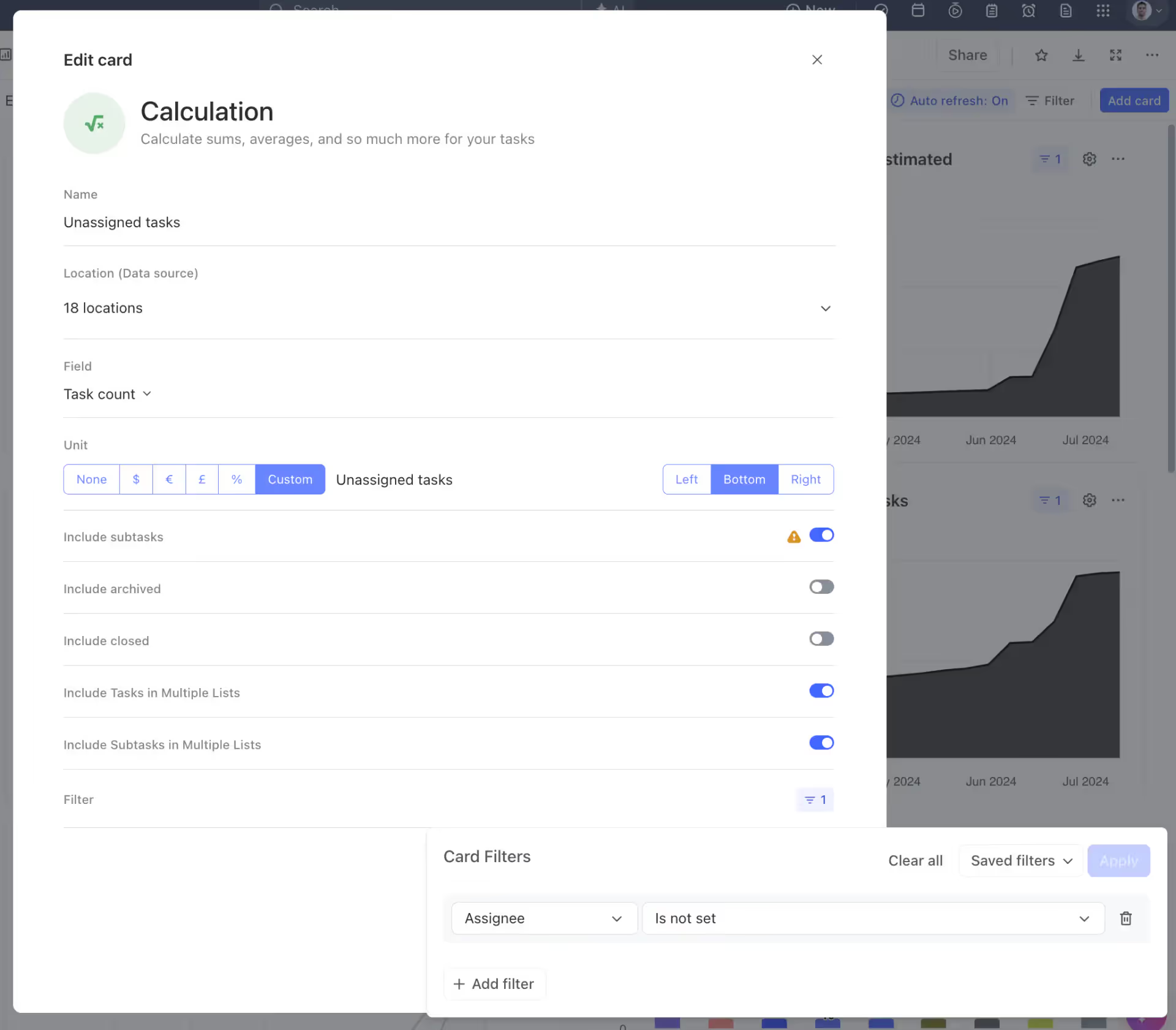
Use calculation cards for metrics like "No Assignee".
Set appropriate time ranges, typically a rolling period of 30 to 90 days.
Include subtasks in your widgets for a complete picture.
Save filters for easy reuse across different views and dashboards.
Customize display options to create an easy-to-read layout.
Interpreting Dashboard Data
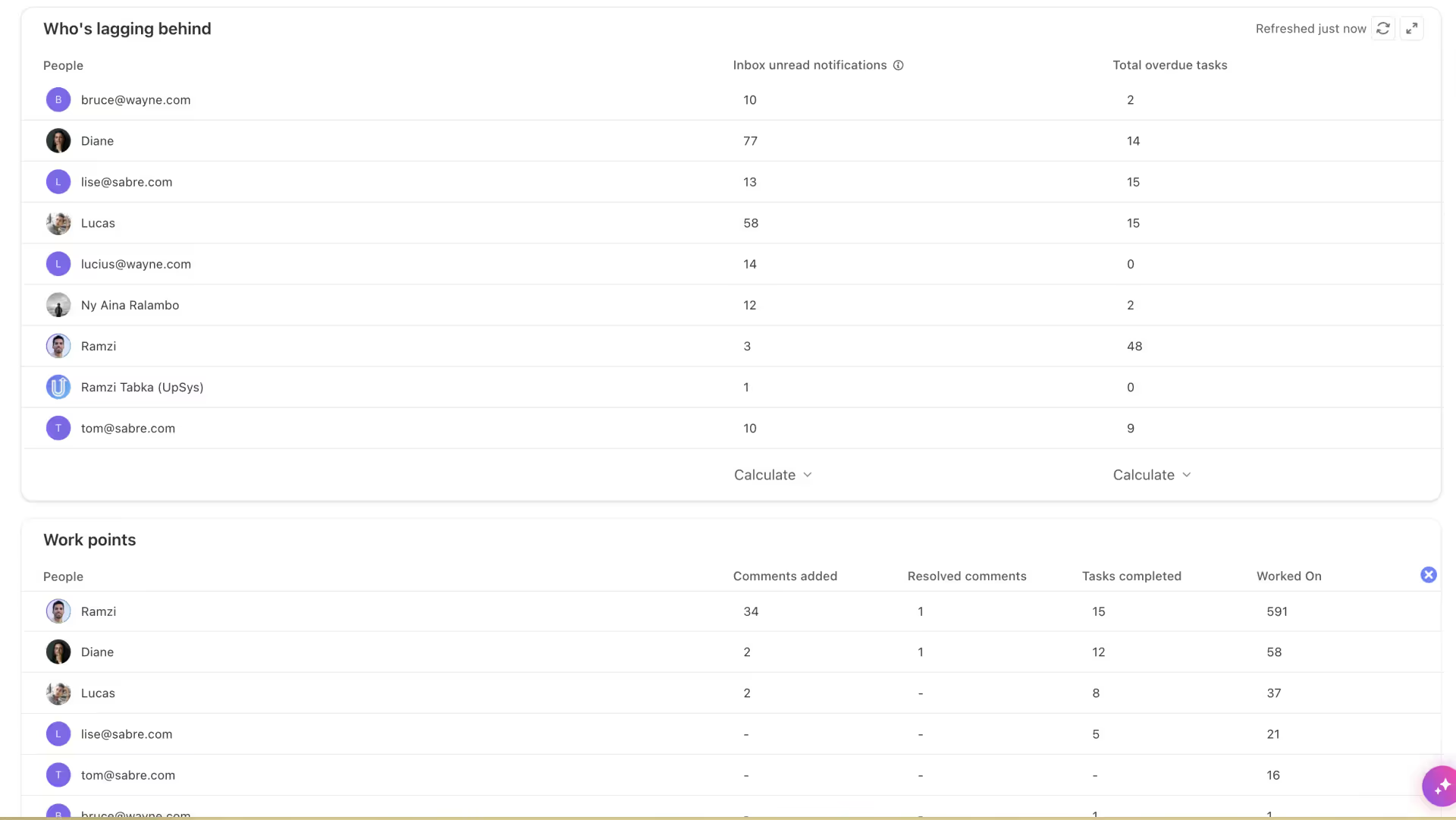
What you can learn from your dashboard:
Are things getting better? Look for fewer tasks missing important info.
Is work spread out fairly among your team?
Who might need help learning to use ClickUp better?
Are you finishing tasks as fast as new ones come in?
Who might need some extra support?
Advanced Dashboard Features
Visualize Team Progress
To take your ClickUp dashboard further, consider incorporating these advanced features. These tools will provide deeper insights into your team's performance and help align daily tasks with broader organizational goals:
Workload View: Incorporate the Workload view into your dashboard to make sure balanced task distribution and prevent burnout. This view, combined with your best practices metrics, provides a complete picture of team capacity and productivity.
Time Tracking Widgets: Use ClickUp's built-in time tracking feature to create widgets that compare estimated time versus actual time spent. This data can help validate your time estimates and improve future planning.
Goals Tracking: Align your best practices with broader team and company objectives by integrating the Goals feature into your dashboard. This helps connect day-to-day task management with overarching strategic goals.
Automation and Integrations
Improve your dashboard's effectiveness by using ClickUp's automation features and integrations:
Set up some auto-rules. You can, have ClickUp automatically add due dates or ping people about tasks that don't have time estimates yet.
Connect ClickUp up with other apps you use. Maybe your time tracker, or Slack, or whatever else helps you get work done. This can make it easier to stick to good habits.
Remember, these metrics are tools for improvement, not judgment. Use them to identify areas where your team can improve their ClickUp usage and overall project management skills.
Implementing and Maintaining Best Practices
Creating views and dashboards is just the beginning. The real challenge lies in implementing these best practices across your team and maintaining them over time.
Team Education and Adoption
Implementing best practices is just the start; getting your team to consistently use these practices is essential for ongoing success. To help your team adopt and continuously improve, consider these strategies:
Training Sessions: Run regular training sessions to educate your team on ClickUp best practices.
Lead By Example: Make sure that managers and team leaders consistently follow these practices in their own tasks.
Celebrate Improvements: Recognize team members who consistently adhere to best practices.
Address Challenges: If certain team members struggle with adoption, work with them individually to understand and overcome any obstacles.
Ongoing Improvement Strategies
Remember, perfecting your ClickUp workflow is an ongoing process. These strategies will help you maintain momentum and adapt to changing needs over time:
Regular Reviews: Schedule monthly or quarterly reviews of your ClickUp practices and dashboard metrics.
Feedback Loops: Support team members to share their experiences and suggestions for improving ClickUp usage.
Stay Updated: Keep abreast of new ClickUp features and assess how they can be incorporated into your best practices.
Adapt and Evolve: As your team and projects grow, be prepared to adjust your practices to meet changing needs.
Frequently Asked Questions
What are the most important fields to track in ClickUp?
Track assignees, due dates, status, and priority at minimum. Use custom fields for project-specific data like budget or client name.
How often should I review overdue tasks in ClickUp?
Check overdue tasks daily for active projects. Set up Dashboard widgets and notifications to catch overdue items before they pile up.
Can I automate tracking best practices in ClickUp?
Yes. Use ClickUp Automations to auto-assign tasks, update statuses, and send reminders when due dates approach or tasks go overdue.
Related Resources
Explore more ClickUp guides to get the most from your workspace:
Conclusion
By keeping a close eye on these best practices and using ClickUp's features effectively, you can greatly improve your team's productivity and project outcomes. It’s about gradual improvement and building a culture where excellent project management is just part of what you do. With time and the right methods, you’ll see just how much more your team can achieve with ClickUp.
Keep reading
What a ClickUp Audit Includes: Scope, Deliverables, Cost
The full scope of a ClickUp workspace audit: the 6 layers that get inspected, the 4 things that come back, how long it takes and what agencies pay for it.
ClickUp Email Integration: Send and Receive Inside Tasks
How to Set Up ClickUp GitHub Integration: Ultimate Guide
This article provides a step-by-step guide on how to set up ClickUp GitHub integration for enhanced project management. Learn all about GitHub ClickUp integration to improve workflow in 2024.